Week and month views
Alongside the day board, the Week and Month tabs give you a wider picture — a full seven-day grid for planning, and a calendar for spotting gaps across the month.
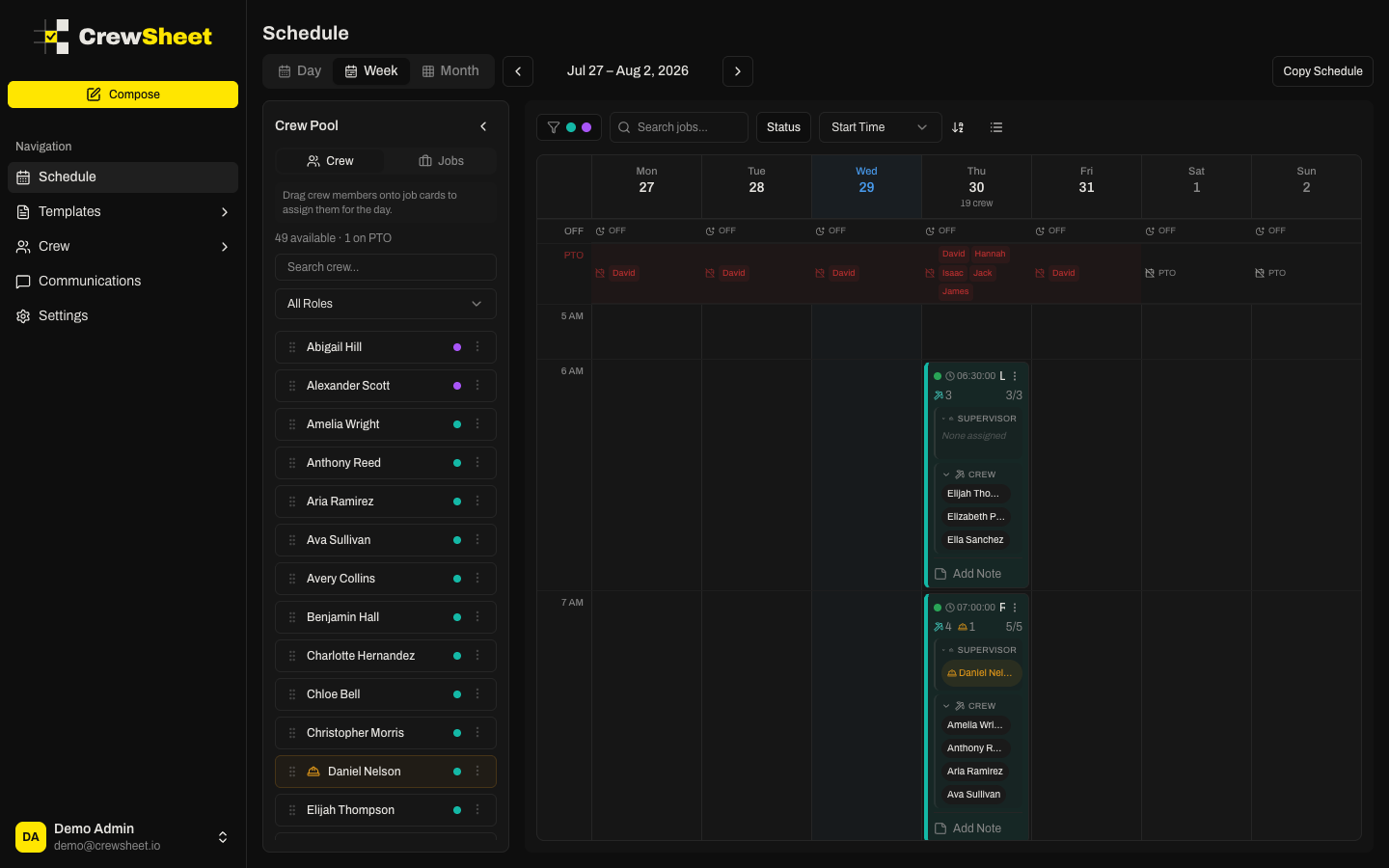
Week view
The Week tab lays out seven day columns with hour rows down the left side, like a calendar. Each job sits in the column and hour of its start time.
- The header for each day shows the weekday, date, and total crew assigned. Today is highlighted and weekends are shaded.
- Pinned rows at the top show who is OFF and who is on PTO each day.
- Jobs without a start time collect in a No time row at the bottom.
Week view is the fastest way to copy a job from one day to another: drag a job card from its day onto another day column and its crew come with it. For copying whole days or weeks at once, see Copying a schedule.
The same search, status, sort, and division filters from the day board apply here too.
Month view
The Month tab is a classic calendar grid. Each day cell summarizes the workload:
- Total crew assigned that day.
- A short list of jobs with a color dot for their division and a staffing count (for example 3/5).
- A count of anyone marked off.
Use it to scan for understaffed days or empty stretches at a glance. Click any day to jump straight to the day board for that date and start assigning.
The crew pool is hidden in Month view since assignment happens on the day board.