The day board
The day board is your home base for scheduling. It shows one day at a time, with every job laid out at its start time and an available crew pool alongside, so you can build tomorrow's roster and send it out in a couple of minutes.
Getting to the board
Open Schedule from the main navigation. The board opens on the Day tab by default.
- Use the left/right arrows at the top to move one day at a time.
- Click the date label in the middle to jump back to today.
- Switch between Day, Week, and Month with the tabs on the left. See Week and month views.
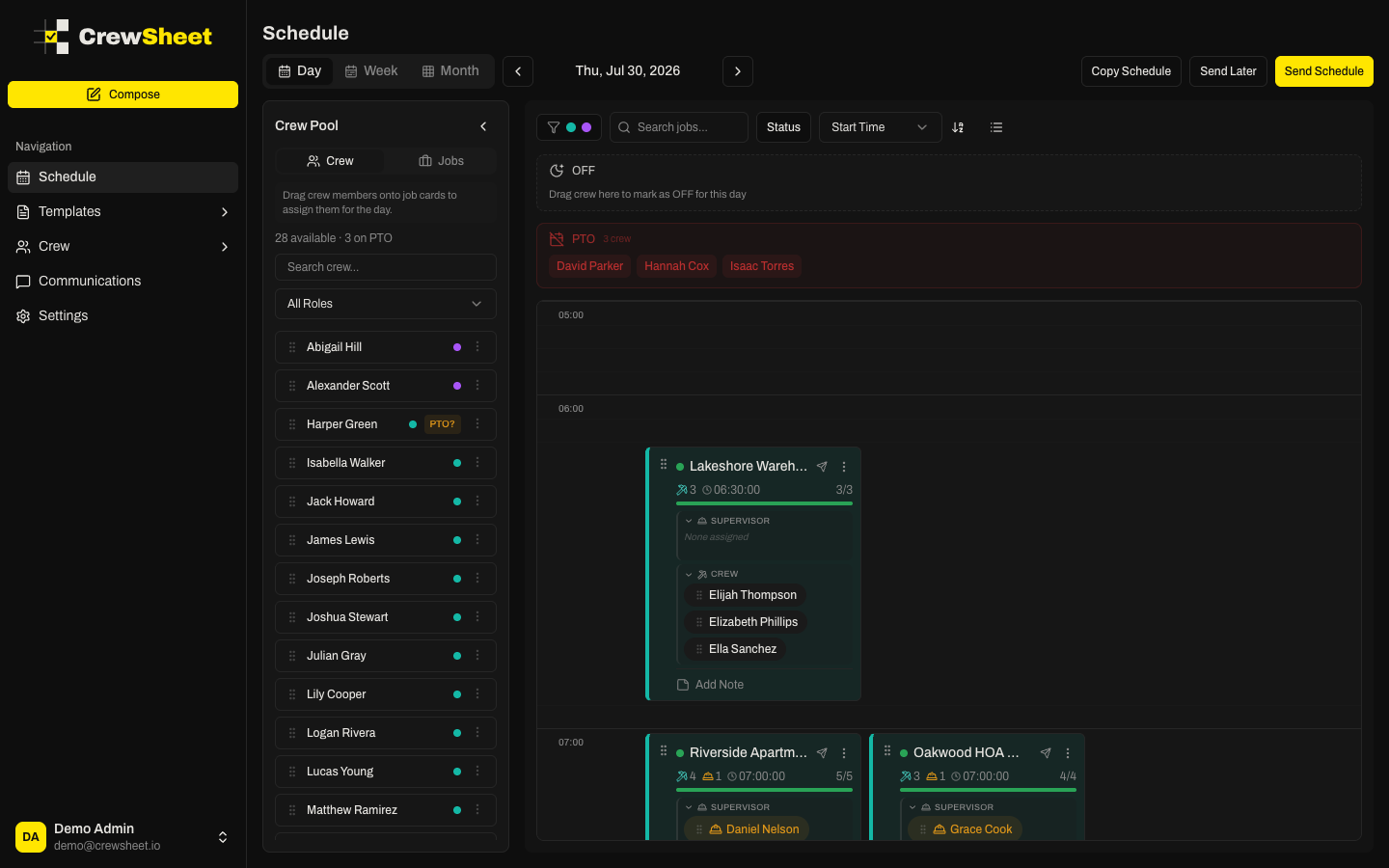
Reading a job card
Each job appears as a card placed at its start time. At a glance a card shows:
- A colored status dot — green means fully staffed, amber means understaffed, red means no crew yet.
- The job name and start time.
- Crew and supervisor counts, plus a progress bar toward the job's ideal crew size (for example 3/5).
- The assigned crew, split into supervisor and crew sections.
Jobs are typically full-day, so only the start time matters — cards sit at 7 AM, 8 AM, and so on down the timeline. See Timeline and start times.
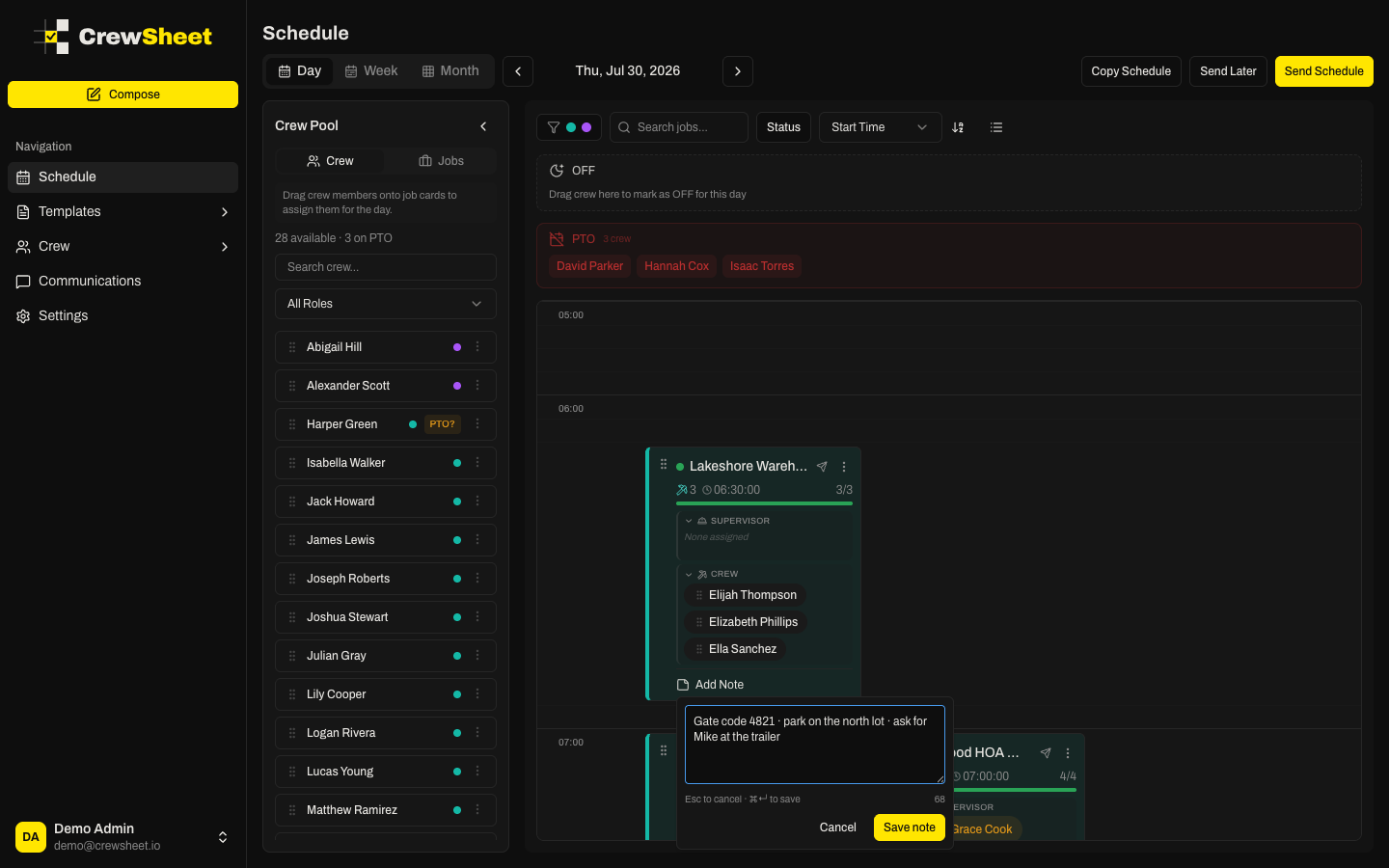
Job notes
Need to pass along a gate code, parking instructions, or an arrival note for a specific day? Click Add Note at the bottom of a job card and type it in. The note is tied to that job on that date, shows on the card so the whole office sees it, and is available to include when you send the schedule.
The crew pool
The pool on the left lists everyone available for the selected day. It tells you how many are available and how many are on PTO. Search by name or filter by role (crew or supervisor). Crew on PTO show grayed out with a PTO label so you don't book them by mistake. Drag crew from the pool onto a job to assign them — full details in Assigning crew.
On a phone, tap the Crew Pool button at the bottom right to slide the pool in.
Filtering and sorting
Above the board you can narrow what you see:
- Search jobs by name or number.
- Status — show only Fully Staffed, Understaffed, Overstaffed, or Unassigned jobs.
- Sort by start time, job name, crew count, or staffing percentage.
- Division filter to focus on one part of the business.
- A density toggle switches between roomy and compact cards.
Sending the schedule
Once the day looks right, use the buttons at the top right:
- Send Schedule — text or email each staffed crew their job details now.
- Send Later — queue every eligible job for one shared future send time.
- Copy Schedule — build the day from a previous one. See Copying a schedule.