Importing jobs from a spreadsheet
If your jobs already live in a spreadsheet or come out of your accounting system, you can bring them into CrewSheet in one step instead of typing each one by hand.
Before you start
Export your jobs to a CSV file. Each row should be one job. Helpful columns include job number, name, address, start time, and crew size — but only job number and name are required.
Importing your file
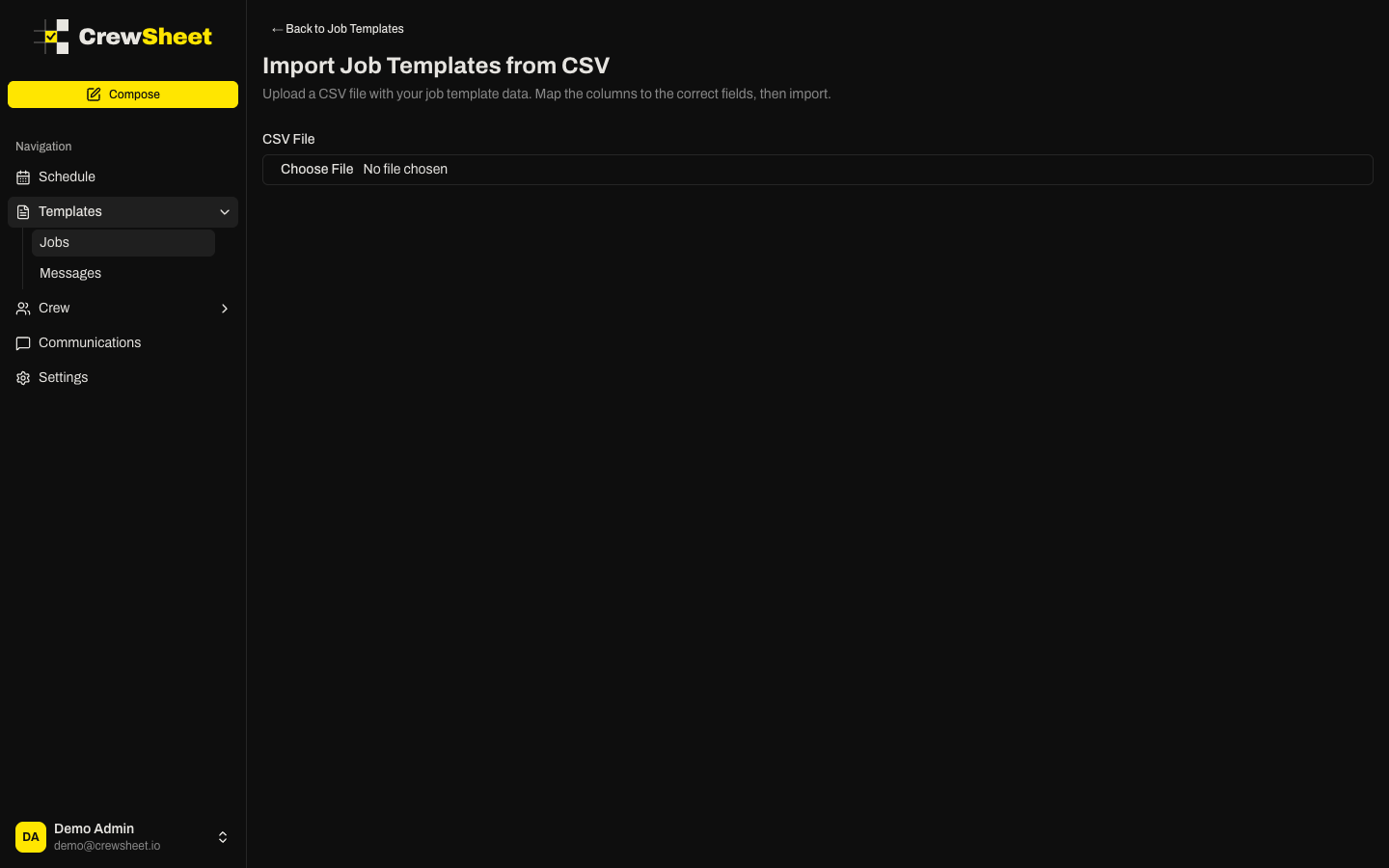
- Go to Jobs and click Import CSV.
- Click Choose File and select your CSV. CrewSheet reads the column headers and shows a preview.
- Check the Column Mapping. CrewSheet automatically guesses which column is the job number, name, address, start time, and crew size. Adjust any that are wrong using the dropdowns.
- Set any column you don't want to bring in to Skip.
- Review the Preview (first 10 rows) to confirm everything lines up.
- Click Import.
After importing
CrewSheet reports how many templates imported successfully and lists any rows that failed, with the reason. Fix those rows in your file and import again if needed, then click View Job Templates to see your new jobs.
Imported jobs behave exactly like ones you add by hand — you can edit, archive, or schedule them right away. See Managing jobs for details.