Copying a schedule
Most days look a lot like the day before. Instead of rebuilding from scratch, copy a previous schedule and adjust. Copying brings over jobs, crew assignments, and start-time overrides — per-job notes stay fresh and are not copied.
Open the copy tool
On the day board, click Copy Schedule (top right). Everything you copy lands on the currently selected date.
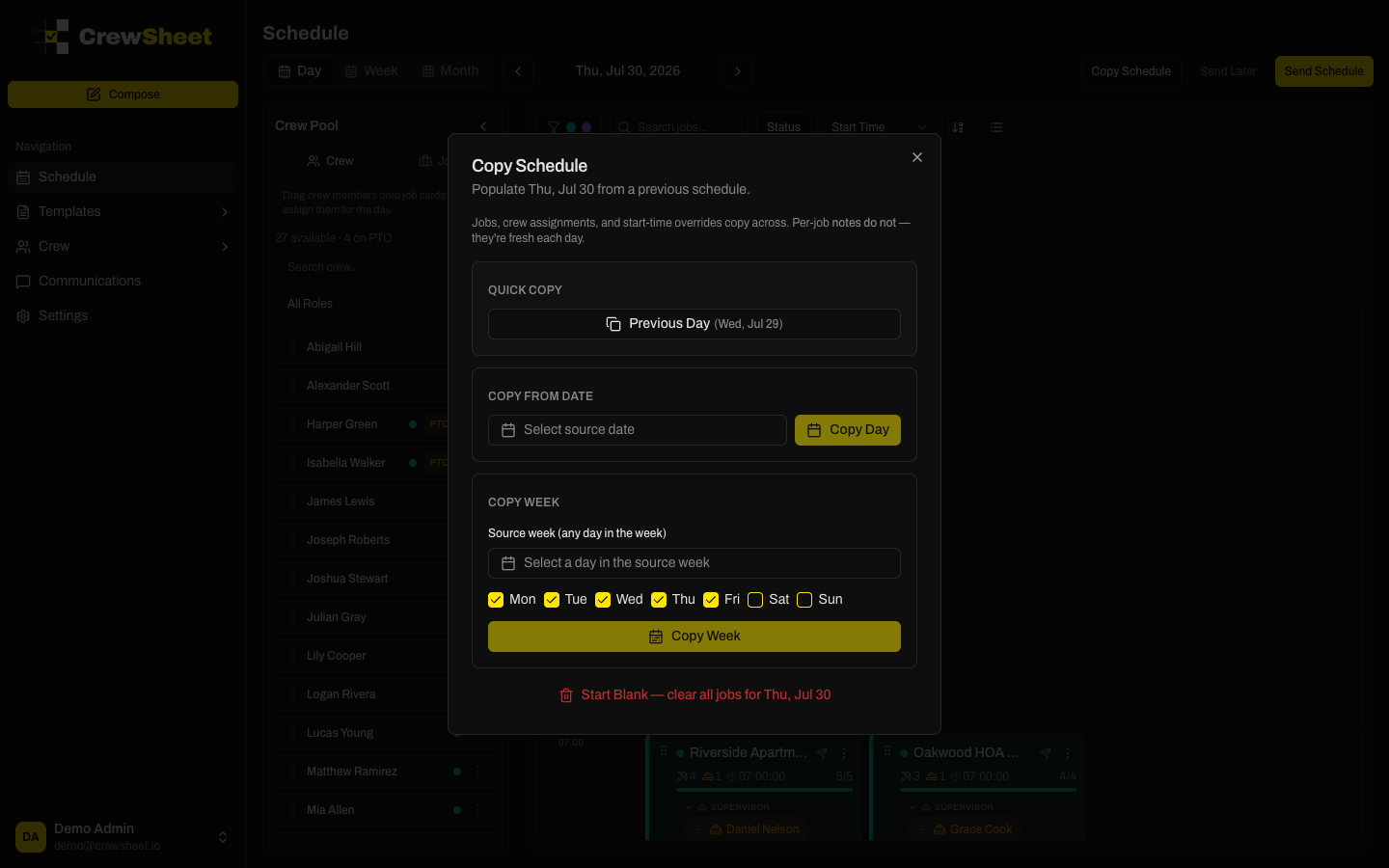
Quick copy
The fastest options are one click:
- Previous Day — copy yesterday's schedule.
- Prev Workday — skip the weekend and copy the last working day.
Copy from a specific date
Under Copy from Date, pick any past date and click Copy Day to pull that day's jobs and crew onto the selected date.
Copy a whole week
Under Copy Week, pick any day in the source week, then check the days you want (Monday through Sunday). Click Copy Week to see a preview table — jobs and crew per day, and whether each target day already has a schedule — then confirm. OFF assignments are left out of week copies.
If the target day already has jobs
When the day you're copying onto isn't empty, you'll be asked to confirm before it's replaced. Copying overwrites the existing jobs and assignments for that day.
Start blank
To wipe the day and begin fresh, choose Start Blank to clear all jobs for the selected date. This can't be undone.
Copy a single job across days
In Week view, you can also drag one job card from its day onto another day column to copy just that job and its crew — handy for a recurring job that doesn't run every day.