Setting up your account
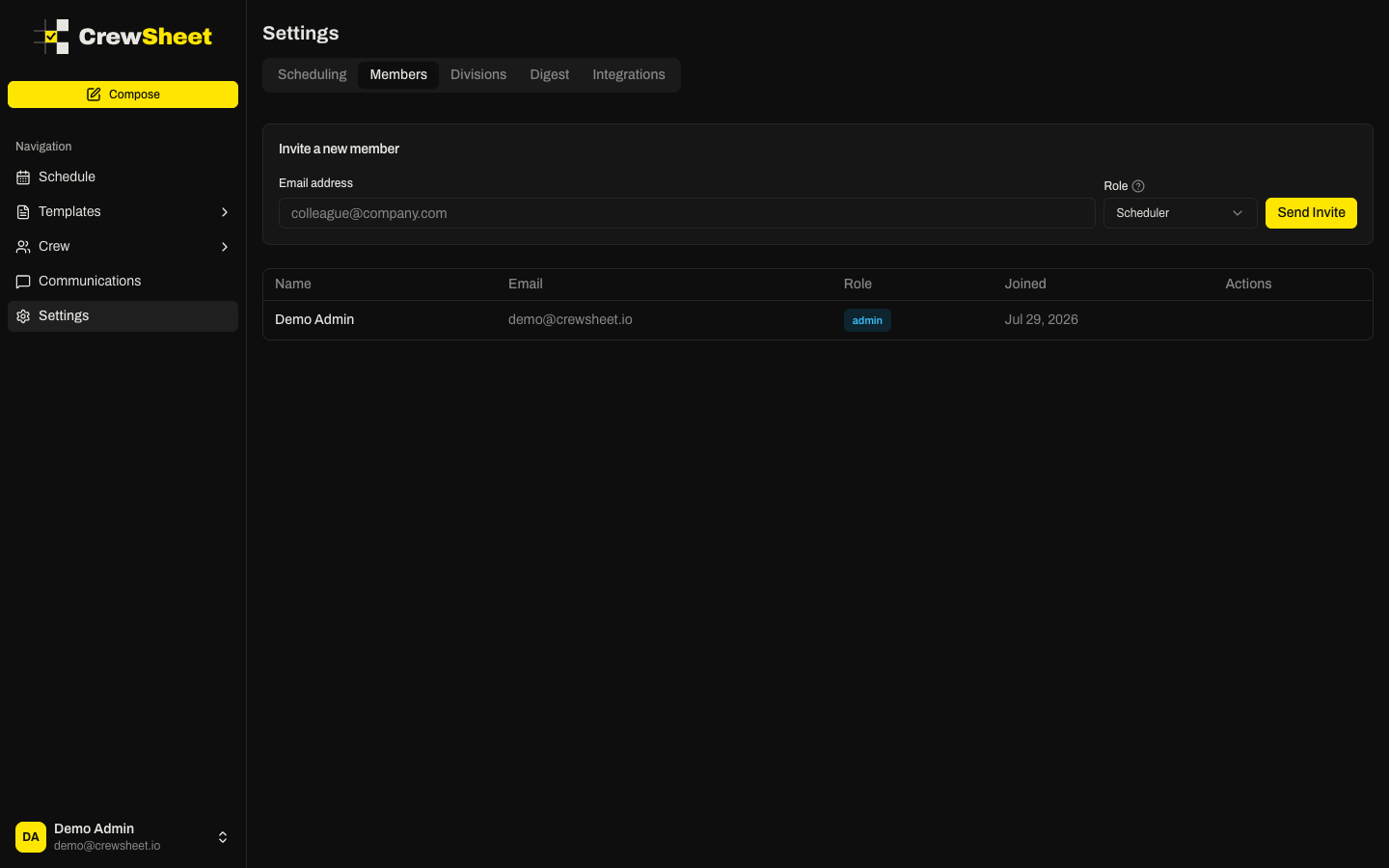
Before you schedule anyone, get your office team into CrewSheet and give each person the right level of access. You'll manage this under Settings > Members.
Invite your team
Only admins can invite people. From the Members page, use the Invite a new member box:
- Enter the person's email address.
- Choose a role (see below).
- Click Send Invite.
They'll get an email with a link to join. The link works for 7 days.
Choose the right role
- Admin — full access, including inviting members and changing settings.
- Scheduler — builds schedules and sends messages to crew. This is the day-to-day operator role.
- Supervisor — a lighter view for field leads to see who's on their job.
Not sure? Click the small info icon next to the Role field for a full breakdown of what each role can do.
Manage members and invites
The Members table lists everyone who has joined. Admins can Edit a person's name or role, or Remove them (access is revoked immediately).
Invites that haven't been accepted yet appear under Pending Invites, where you can:
- Resend Email if it didn't arrive.
- Copy Link to send it yourself.
- Revoke to cancel the invite.
Next
With your team in place, add your jobs and crew, then head to the schedule board to start assigning.