The schedule board
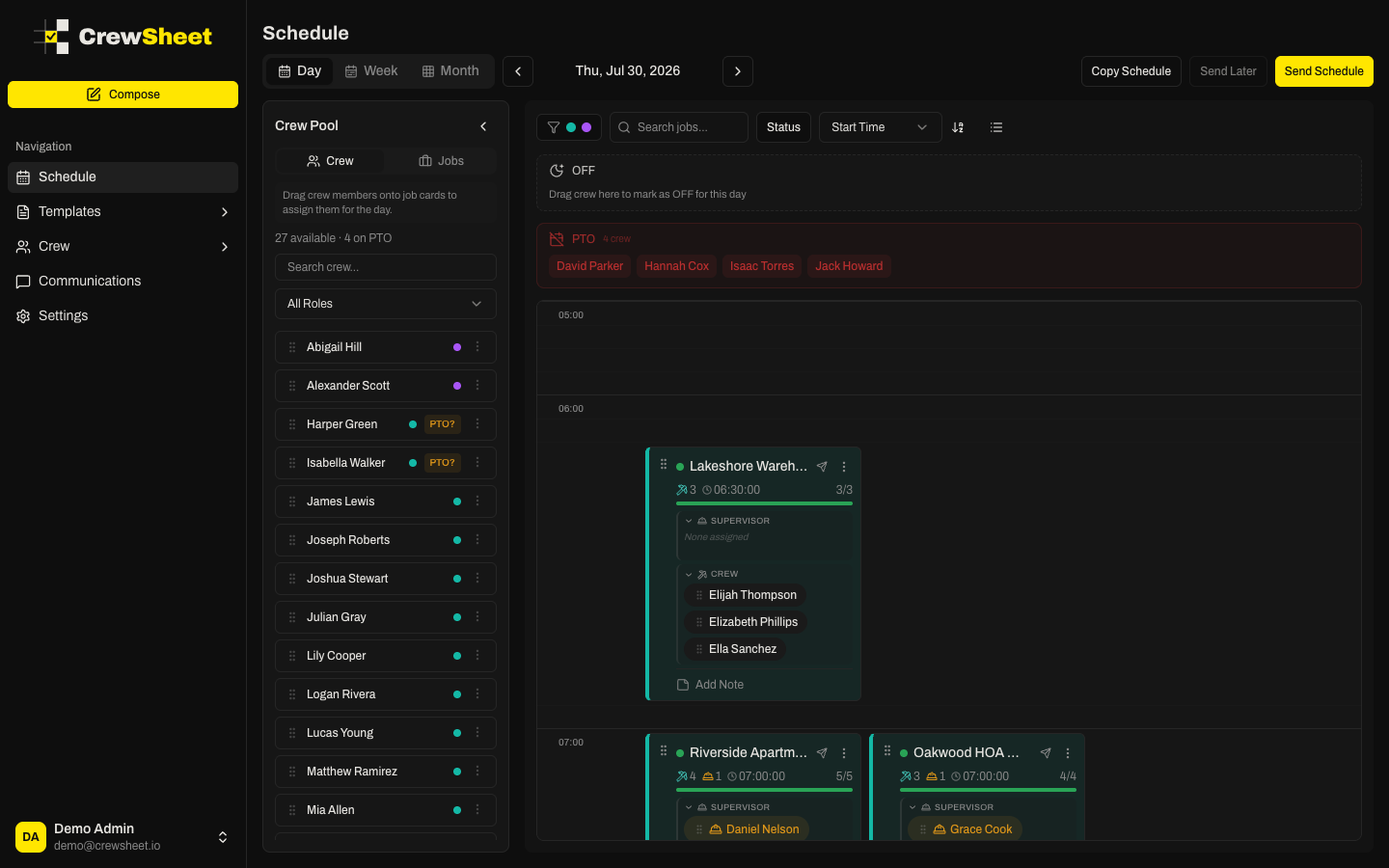
The schedule board is where you build each day's plan and send it out. Open it from Schedule in the sidebar. Everything centers on one day at a time, with your jobs shown side by side and your crew in a pool on the left.
Pick your day and view
Use the date arrows at the top to move between days, or click the date to jump back to today. Switch between three views:
- Day — the main board for assigning crew and sending the schedule.
- Week — a 7-day overview; drag a job's crew onto another day to copy it.
- Month — a summary of job and crew counts per day.
Assign crew
The crew pool on the left shows everyone available for the selected day. Drag a person from the pool onto a job to assign them. You can also drag someone straight from one job to another.
- Assigned crew leave the pool for that day.
- A crew member can only be on one job per day — CrewSheet blocks double-booking.
- Each job shows its ideal crew size, but you can overstaff whenever you need to.
- Anyone on PTO is grayed out with a "PTO" label so you don't schedule them.
Send the schedule
When the board looks right, click Send Schedule (Day view) to text and email each crew their job details. Use Send Later to queue it for a set time, or Copy Schedule to reuse a previous day's setup.
Need your team set up first? See Setting up your account.