Assigning crew
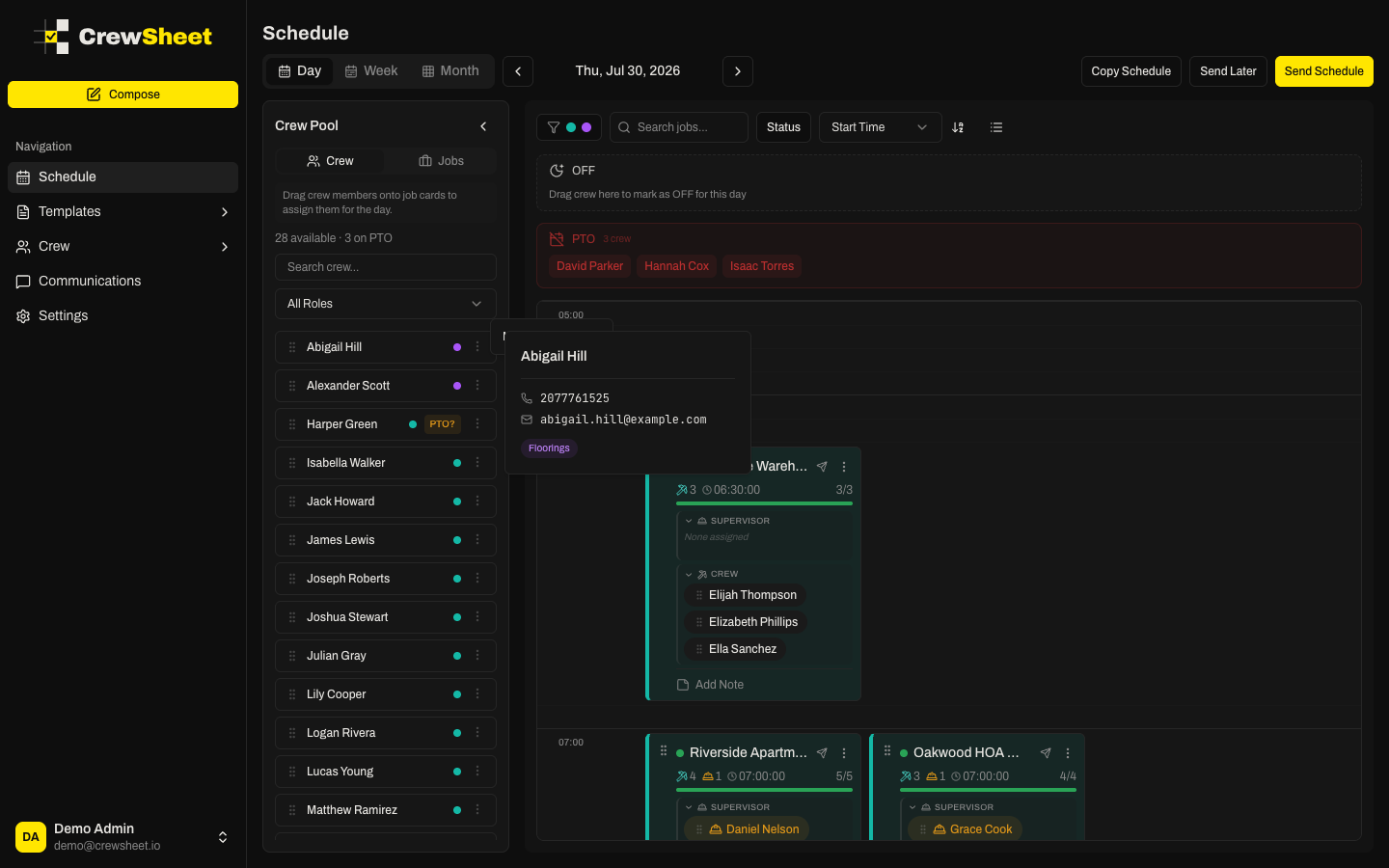
Building a roster is all drag-and-drop: pull crew from the pool onto jobs, move them between jobs, and the board keeps everyone assigned to just one job a day.
Assign from the pool
Drag a crew member from the crew pool onto a job card. Drop them into the job's supervisor section or its crew section to set their role for that job — a foreman can work as regular crew on one job and lead on another, no profile changes needed.
Assigned crew leave the available pool for that day so you always see who still needs placing.
Move crew between jobs
Drag a crew chip straight from one job to another to reassign them — no need to return them to the pool first. To take someone off a job entirely, drag their chip back onto the crew pool.
One job per person per day
A crew member can only be on one job per day. If you drop someone who's already assigned elsewhere, the chip shakes and a message tells you where they already are. (If your workspace allows double-booking, you'll get a confirmation prompt instead.)
Jobs show an ideal crew size, but overstaffing is always allowed — the ideal is a guide, not a limit.
PTO and divisions
- Crew on PTO appear grayed out with a PTO label and can't be dragged, so you won't book someone who's off.
- If your workspace uses divisions, crew can only be dropped on jobs in a division they belong to; other drops are refused.
Marking crew OFF
To record that someone is off for the day, drag them onto the OFF zone at the top of the board, or open the ⋮ menu on a pool member's chip and choose Mark off today. Crew in the OFF zone can be included when you send the schedule so they know they're not needed.