Message templates
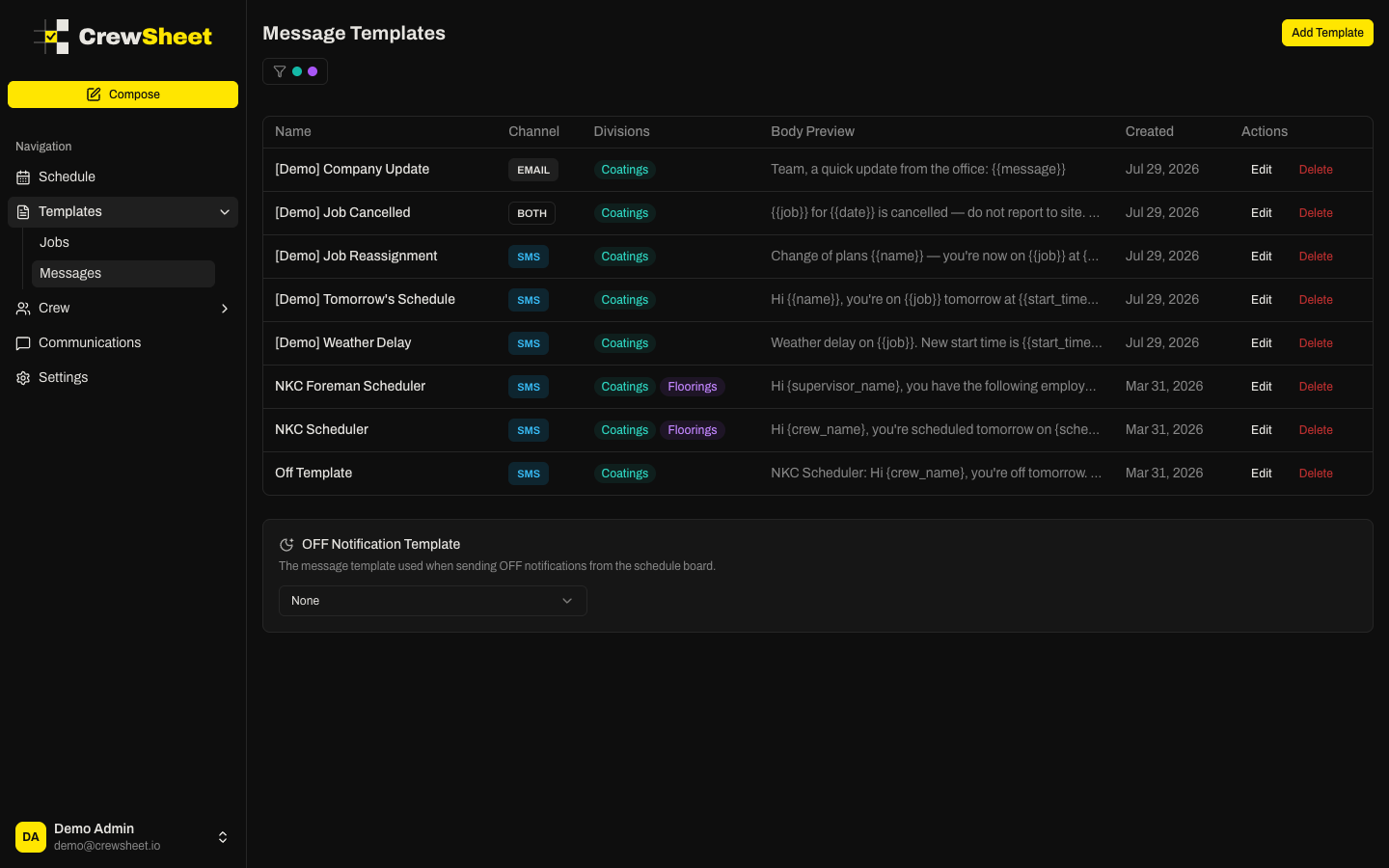
Message templates are your reusable, pre-written texts. They mean you send a clean, consistent message every day without retyping — and without fear of breaking a fragile script.
Create a template
- Go to Message Templates and click Add Template.
- Give it a clear name (e.g. "Daily Schedule Notification").
- Write the message body. Use the Insert Variable buttons to drop in placeholders that fill in automatically when you send.
- The character and SMS-segment count updates as you type, so you can keep texts short.
- Click save.
Variables
Variables are wrapped in curly braces and are replaced per recipient at send time:
- Crew:
{crew_name},{crew_members} - Job:
{job_name},{job_number},{job_address},{start_time},{notes} - Schedule:
{schedule_date},{todays_date},{tomorrows_date},{supervisor_name},{supervisor_phone_number}
Job and supervisor variables only fill in when you send from a job card. If you use one in an announcement, it will be left blank. CrewSheet warns you about any unrecognized variable.
Divisions and the OFF template
Open a template to assign it to specific divisions. You can also set an OFF Notification Template — the message used when you notify crew they're off for the day from the schedule board.
Edit or delete
Use Edit to update wording anytime, or Delete to remove a template you no longer need. Changes apply to future sends only.