Scheduled sends
Instead of sending right now, you can queue a message to go out at a set time — for example, tomorrow's schedule at 5pm today. CrewSheet sends it automatically at that moment.
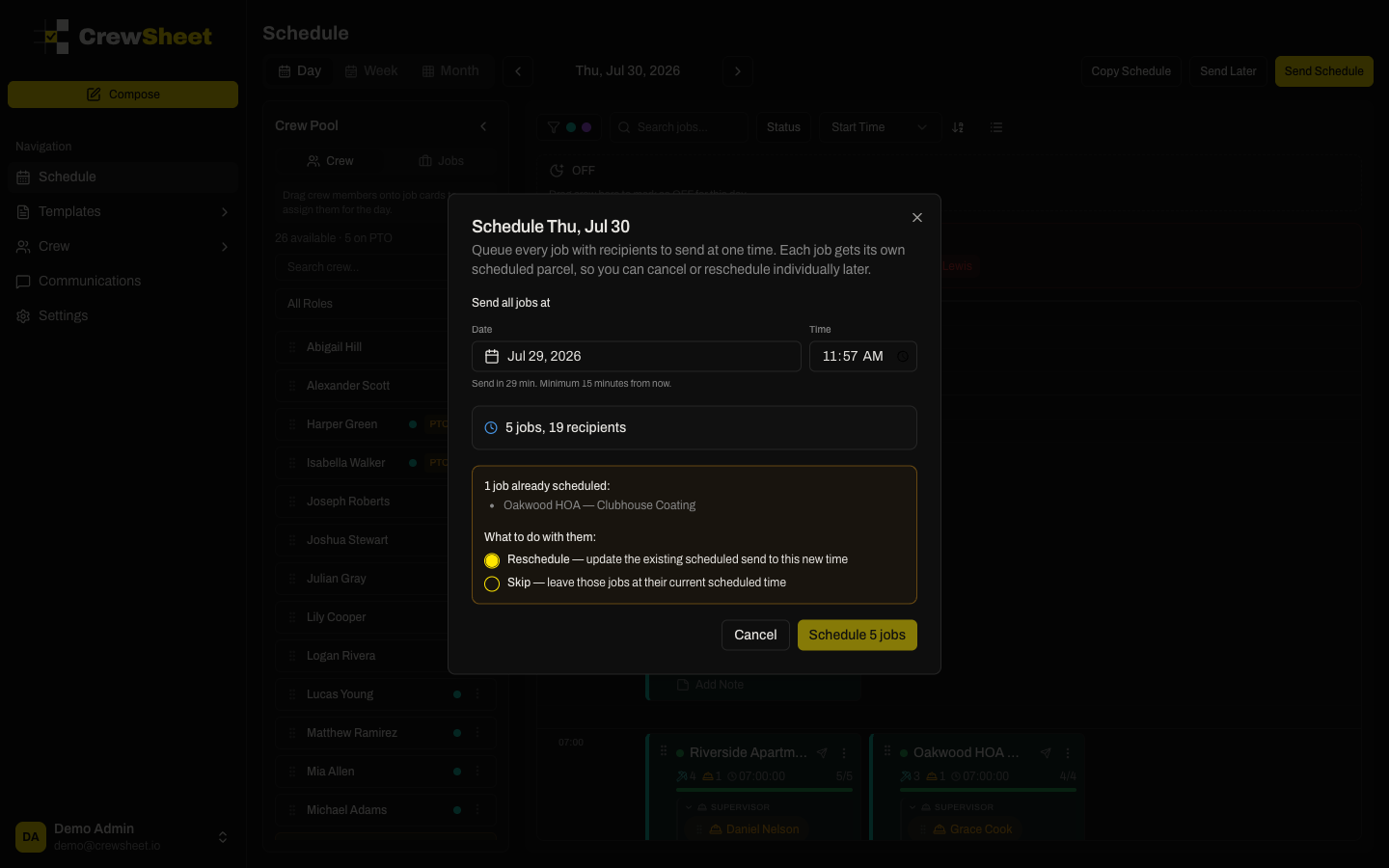
Schedule a send
- In the composer, build your message as usual — pick recipients and a template.
- Switch the send toggle from Now to Later.
- Choose a date and time. A helper shows how far out that is (e.g. "in 3h") to sanity-check against the current time.
- Click Schedule.
Sends must be at least 15 minutes in the future. The composer defaults to about 30 minutes out.
Reschedule or cancel
A job that already has a message queued shows an Already scheduled banner when you reopen its composer, with Reschedule and Cancel scheduled send buttons. You can also manage a queued send from its entry in Communication history:
- Open the batch (marked scheduled, with a clock icon).
- Click Reschedule to pick a new time, or Cancel send to stop it.
Cancelling means the crew will not be notified unless you schedule or send a new message.
Where scheduled sends appear
Queued messages show in history with a scheduled status and the planned send time, alongside when they were queued. Once the time arrives they send automatically and flip to sent.