Construction Crew Scheduling FAQs

Construction Crew Scheduling FAQs
A single double-booked crew member can force last-minute calls, add travel time, and cost a small contractor hundreds in lost labor each day. construction crew scheduling FAQs is an FAQ resource that answers operational questions contractors ask about daily crew scheduling, SMS delivery, avoiding double-booking, and moving from spreadsheets to CrewSheet. You'll get clear, actionable answers on day-board assignment and single-use rules to stop overlaps, plus how SMS templates and 10DLC-compliant sending reduce message errors. Practical links show how operators assign by drag-and-drop on the CrewSheet schedule board and how to send the day's roster using the sending the schedule workflow—so you can ditch fragile sheets and group texts with minimal disruption.
How do I stop double-booking and avoid scheduling crew on PTO?
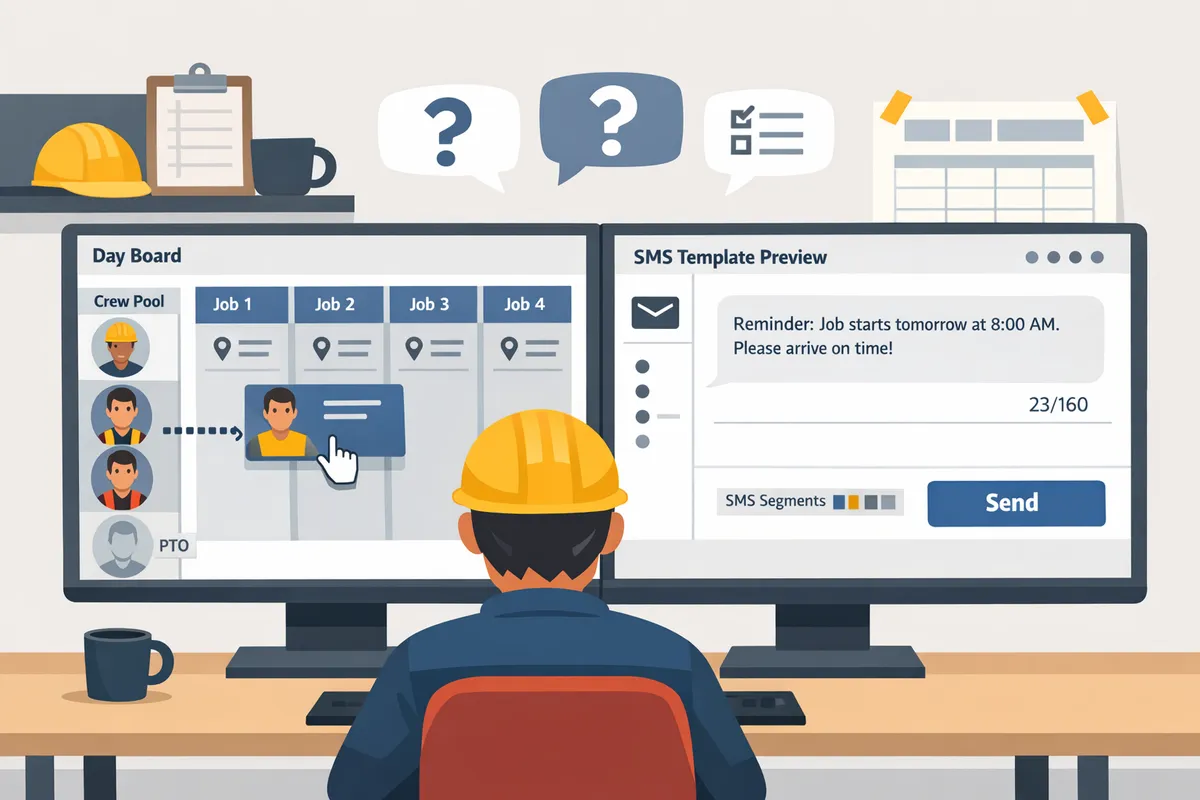
Use a day-board view with a single-use rule and a PTO-aware available pool to prevent double-booking and keep people off their days off. A day board shows jobs side-by-side and prioritizes job start time, which makes same-day conflicts obvious. Our schedule board enforces single-use and grays out PTO in the pool so operators cannot assign someone to two jobs or to a day off. For screenshots and a quick demo, see our schedule board documentation and the guide on sending the schedule.
What is the single-use rule and how does a PTO-aware pool prevent double-booking? 🛑
The single-use rule prevents a crew member from being assigned to more than one job on the same day and a PTO-aware pool makes days off visually and functionally unavailable. CrewSheet implements the rule so the UI blocks a second assignment and flags any conflict at a glance. Showing PTO as grayed-out entries in the available pool stops accidental scheduling from separate spreadsheets or memory-based processes. The business cost of not enforcing this is understaffed jobs, emergency calls, overtime, and lost billable hours; those are the real reasons operators swap back to spreadsheets under pressure.
What quick checks should I run before sending the schedule? ✅
Run a five-step pre-send checklist that verifies PTO, start times, supervisor assignments, duplicate bookings, and message previews. Follow these steps every send:
- Confirm PTO for the chosen date in the available pool.
- Verify each job start time matches the day's plan.
- Ensure a supervisor or foreman is assigned where required.
- Scan the board for duplicate names or same-day conflicts.
- Preview the SMS template and a sample recipient to check content and carrier segments.
Once your team practices this, operators complete it in 30 to 60 seconds and catch the typical spreadsheet failure modes. See our sending the schedule docs for how message previews and templates integrate into the send flow.
💡 Tip: Preview your SMS template with a sample recipient to check character count and placeholder values before sending.
How does a day board compare to a week grid or spreadsheets for preventing double-booking? 📊
A day board reduces same-day conflicts for full-day jobs better than a week grid or raw spreadsheets. The table below compares the three approaches on the attributes that matter most to operators.
| Feature | Day Board | Week Grid | Spreadsheets |
|---|---|---|---|
| Double-booking prevention | Strong. Enforces single-use and blocks conflicts. | Moderate. Shows overlaps but can still allow duplicate assignments. | Weak. Manual checks required; easy to miss same-day duplicates. |
| PTO visibility | High. PTO appears in the available pool and is unassignable. | Low to Moderate. PTO often shown on a separate layer or not at all. | Very low. PTO usually lives in another sheet and gets overlooked. |
| Drag-and-drop assignment | Yes. Fast pool-to-job drag and job-to-job moves. | Sometimes. Depends on the tool; less natural for day-based work. | No. Requires cut, paste, or manual typing. |
| Ease of sending SMS | Built-in. One-click send with templates and character counters. | Tool-dependent. Often requires exporting and manual messaging. | Poor. Requires copy-paste into group texts or third-party SMS tools. |
For day-of operations where start time matters more than hourly slots, our day-board reduces costly rework and field confusion. If you still run schedules from Google Sheets, read our guide on scheduling software for construction crews and the post about no-login crew scheduling solution to see why switching to a day-board cuts admin time and prevents PTO mistakes.

How can I send today's crew schedule by text quickly and reliably?
Use CrewSheet's day board, pre-formed SMS templates, and carrier A2P routing to build the day's roster and push start-time texts to crews without requiring logins. This replaces copy-paste group texts by keeping PTO visible, preventing double-booking, and providing a safe preview before you send. For a step-by-step how-to, see our guide on sending the schedule and the schedule board to understand the exact workflow.
How do I send today's board by text, step by step?
Build the day board, pick the jobs to notify, choose a template, review recipients, and hit send. Follow these five steps the first three mornings and it becomes your standard operating procedure.
- Build the day board. Open the Day view, drag crew from the available pool onto each job, and confirm PTO shows grayed-out so you do not schedule someone on leave. See how the schedule board surfaces PTO.
- Select which jobs to notify. Use the job filter to limit notifications to jobs starting today or to a foreman-specific roster.
- Pick a template. Open the Send dialog and choose a pre-formed SMS template so wording stays consistent across crew members.
- Review recipients and preview messages. Confirm phone numbers, job name, address, and start time in the preview pane. The send dialog shows delivery status in the audit log after you send.
- Send and monitor. Hit send. CrewSheet records delivery status for operations, and you can export the communication history for payroll or disputes.
Refer to sending the schedule for options on bulk sends and per-job sends.
What message templates should I use and why does a character/segment counter matter? 📝
Use short, consistent templates that include only job name, address, start time, and a one-line instruction for changes; watch the live character and segment counter to avoid unexpected carrier segments. The counter prevents messages from splitting into extra SMS segments which add cost and risk of script breakage.
Good template examples you can copy and test:
- Short: "Job: {JobName}. {Address}. Start: {StartTime}."
- Standard: "{JobName} — {Address}. Start {StartTime}. Call {OfficeNumber} for changes."
- Foreman note: "{JobName} at {Address}. Start {StartTime}. Foreman: {ForemanName}."
Keep placeholders short (for example use a street + city rather than full multi-line addresses) so long addresses do not push you into a second segment. CrewSheet displays a live SMS character and segment counter inside the template selector so operators can safely edit templates without breaking the script.
💡 Tip: Preview and test-send a template to one office number after edits. That confirms how variables expand and prevents split messages going to a whole crew.
See our comparison of why scheduling software beats copy-paste texts in Scheduling Software for Construction Crews.
Why use an outbound-only SMS model and how does compliance work?
Operate outbound-only SMS with carrier 10DLC A2P registration to keep field workflows simple and reduce carrier compliance risk. 10DLC A2P is carrier-required registration that identifies your business and campaign to mobile networks for application-to-person messaging, which lowers the chance of blocking and supports higher throughput.
CrewSheet sends one-way texts so field workers never need an account and operators do not have to manage inbound replies. Delivery-status records exist for operational monitoring, not as a substitute for replies or read receipts. CrewSheet includes built-in 10DLC A2P registration (handled via our SMS partner) so you do not manage campaign approvals yourself.
Operate outbound-only for these real-world benefits:
- Keeps foremen focused on the site, not text triage, which reduces missed starts.
- Removes the overhead of handling inbound message routing and response staffing.
- Reduces compliance burden because our A2P registration covers campaign-level vetting with carriers.
⚠️ Warning: Confirm crew consent and phone accuracy before sending. Use opt-in records and consider a one-time double opt-in when importing phone lists to avoid deliverability problems.
For more on why no-login, one-way SMS fits trades teams, see No-Login Crew Scheduling Solution for Construction Field and our notes on universal SMS in Small Contractor Scheduling App With Universal SMS.
Is switching from spreadsheets and group texts worth the cost and effort?
Yes. The time saved, fewer missed starts, and lower payroll friction typically pay back the migration cost for small-to-midsize trades companies. Switching removes recurring admin work, cuts error-driven rework, and reduces the chance of scheduling someone on PTO, which otherwise forces last-minute calls or costly overtime.
What are the real business costs of keeping spreadsheets and group texts? 💸
Manual spreadsheets and ad-hoc group texts create recurring hourly waste, error-driven rework, and payroll friction that hit margins. For example, an operator who spends two hours each morning reconciling a Google Sheet, fixing duplicate bookings, and sending group texts spends roughly 10 weekly hours on that loop. A single double-booked day for a 12-person coatings crew can cost the business two lost billable crew-days plus emergency overtime for coverage. These are concrete line-item losses: operator labor, lost billable time, and payroll corrections.
Common downstream costs.
- Operator hours spent reconciling schedules and messages.
- Missed starts that delay jobs and trigger emergency calls.
- Accidental overtime and payroll adjustments after scheduling mistakes.
See our analysis in Scheduling Software for Construction Crews for feature-level trade-offs and how a day-board reduces these specific costs.
What is a practical four-step migration plan from spreadsheets to CrewSheet? 🔁
A safe migration follows four steps: import, clean, build, and pilot before full cutover. Follow this checklist and include simple rollback actions at each step.
- Import jobs and crew via CSV.
- Checklist: export job list (number, address, default_start_time, ideal_crew_size); export crew (name, phone, role, PTO dates).
- Rollback: keep the original CSV exports and do the first import to a test date, not production.
- Clean PTO and roles.
- Checklist: mark PTO on the import, verify role mapping for foremen vs crew, and confirm phone formats (e.g., +12223334444).
- Rollback: if PTO mismatches appear, revert the test date and fix the CSV column mapping.
- Build the day board.
- Checklist: drag crew from the pool to jobs, confirm single-use enforcement blocks double-booking, and set per-job start times.
- Rollback: copy the previous day's sheet as a snapshot before mass changes; CrewSheet supports copy schedules between dates.
- Pilot with a small group and measure.
- Checklist: run one crew or one site for 3–5 business days, collect operator time saved, and check delivery logs.
- Rollback: switch the pilot group back to the spreadsheet workflow while you iterate on templates.
💡 Tip: Run the pilot on a low-risk weekday and use pre-formed message templates so field crews see consistent SMS formats.
See our docs on importing and the schedule board for details on CSV format and day-board behavior.
How does CrewSheet reduce risk and save operator time? ✅
CrewSheet reduces risk and saves operator time by replacing fragile copy-paste workflows with a PTO-aware day board, single-use enforcement, and one-click SMS sends. Operators drag names, pick a pre-formed template, and send the day's roster without requiring field-worker logins. CrewSheet's day-board keeps PTO visible and grays out unavailable crew, preventing accidental scheduling on days off.
Concrete outcomes and mechanics.
- Fewer manual steps: drag-and-drop assignment replaces cut-and-paste row edits and group-text composition.
- Fewer mistakes: single-use enforcement blocks same-day double-booking before you send.
- Faster sends: operators can build the board and dispatch SMS in about 30 seconds using scheduled templates and the send flow.
CrewSheet sits between spreadsheets and enterprise platforms: it keeps the flexibility operators want while adding structure that cuts rework and compliance headaches. For operational examples of sending workflows, see Sending the schedule and The schedule board.
Frequently Asked Questions
This FAQ answers contractors' operational and technical questions about daily crew scheduling, SMS delivery, PTO handling, imports, and CrewSheet capabilities. Use these quick, actionable answers to speed morning sends, stop double-bookings, and plan a safe migration from spreadsheets to a managed schedule-and-notify flow.
Can I schedule crews without logins? 🔒
Yes. CrewSheet is a push-based scheduling tool that sends job details by outbound SMS and email so field workers never need accounts or app installs. This keeps the operator workflow centralized while field crew receive plain-text instructions on their phones.
CrewSheet's no-login approach removes the adoption friction that spreadsheets-plus-group-texts create. See our article on the no-login crew scheduling solution for construction field teams for real-world examples and the trade-offs versus full-platform login models.
How do I send my crew their schedule every morning?
Build the day's board, choose a message template, preview recipients, and send. That single routine turns morning scheduling into a repeatable action rather than a copy-paste chore.
- Open the Day board for the target date and drag crew from the available pool onto job cards.
- Open Send, pick a pre-formed template, and confirm recipients for each job.
- Preview the SMS segments and hit send; CrewSheet logs delivery status for audits.
💡 Tip: Make sending a one-step habit by saving a default template and testing it once on a sample date. See the docs on sending the schedule for template and channel details.
How do I stop double-booking crew members?
Use CrewSheet's single-use enforcement and PTO-aware pool so a crew member cannot be scheduled on two jobs the same day. Single-use enforcement is a scheduling rule that prevents the same resource from being assigned to multiple jobs for one date.
When an operator drags a person who is already assigned, the board surfaces the conflict immediately and blocks the action. Keep PTO entered in the system so unavailable crew appear grayed-out in the pool and cannot be assigned. For a hands-on view of this workflow, see the schedule board documentation.
Can I import jobs and crew from a spreadsheet or CSV?
Yes. CrewSheet accepts CSV imports with smart column auto-detection for names, phone numbers, emails, job start times, and ideal crew size. Testing an import on a sample date prevents mapping errors and saves hours of cleanup.
Recommended import steps:
- Standardize columns (name, phone, email, job_id, start_time, ideal_crew_size).
- Upload a small sample CSV and confirm column mappings.
- Run the import for a week or a few dates, then spot-check rosters before a full migration.
Manual CSV migrations often cost operators time and create duplication errors; using CrewSheet's auto-detect reduces that risk and keeps the board accurate. For context on why a structured day board beats spreadsheets, read Scheduling Software for Construction Crews.
Will crew replies or confirmations be recorded?
No. CrewSheet uses one-way outbound messaging and does not record crew replies or rely on acknowledgements as proof of receipt. Delivery-status logging exists for audits, but it is not a substitute for replies or read receipts. We designed the model around real-world crews who follow instructions rather than confirm them. Operators should not expect inbound confirmations; instead use short, clear templates and a reliable contact list.
⚠️ Warning: Do not rely on crew replies as an operational signal; design your morning routine and follow-up calls around the one-way model.
Is texting crew at scale compliant with carriers?
Yes. CrewSheet includes built-in 10DLC A2P compliance to help with carrier vetting and campaign approval for mass SMS. Proper registration reduces the chance carriers flag your messages when sending to many numbers.
Operators still must use permissioned contact lists, concise templates, and maintain opt-out handling to avoid campaign issues. Keep records of consent and use short scripts to limit message segments. For a practical comparison of SMS-based scheduling approaches, see Small Contractor Scheduling App With Universal SMS.
Next steps to stop double-booking and send schedules by text.
Make the daily schedule a single reliable action: build the day board, keep PTO visible, and push one-way SMS so foremen and crew get clear start-time instructions. Spreadsheets plus group texts cost hours and invite mistakes; use this article's construction crew scheduling FAQs as an operational checklist to reduce missed starts and duplicate bookings. If avoiding field-worker logins matters, see our no-login crew scheduling solution for Construction Field for a focused comparison.
Try Crew Sheet: follow the getting-started guide to build your first day board and send a real crew schedule. For practical how-to steps on messaging, follow Sending the schedule to learn templates and bulk sends, and read our Scheduling Software for Construction Crews if you want a side-by-side look at options.
Subscribe to our newsletter for short implementation tips and product updates.