How to Avoid Double-Booking Crew Members on a Job

How to Avoid Double-Booking Crew Members on a Job
A single misassignment, scheduling one worker on two jobs the same day, triggers frantic calls, last-minute reassignments, and lost hours on site. How to avoid double-booking crew members on a job is a set of scheduling practices and tools that prevent assigning any crew member to more than one full-day job on the same date. This guide teaches practical, step-by-step methods to prevent double-booking crew members, implement PTO-aware scheduling, and use CrewSheet to enforce single-use rules and send timely SMS notifications. Our features page explains how single-use enforcement and a visible PTO pool remove guesswork. See our no-login crew scheduling solution article for quick SMS templates. You may be surprised which simple habit prevents most clashes.
How do I find the root causes of crew double-booking before I change processes?
Run a focused, evidence-first audit that maps where schedules and messages originate, measures how often conflicts start, and isolates PTO and template failure points. You can complete this audit in one to two business days and use the results to link failure modes to concrete business outcomes: wasted crew hours, missed starts, and client rework. The rest of this section is a four-step checklist you can follow now.
Step 1: Map every schedule source and communication channel. 📋
List every place jobs and crew data live, who edits each source, and draw a one-page handoff diagram that shows copy-paste points. Start with a simple table: source name (Google Sheet, ERP export, group text), owner, how it is updated, and who copies data into it. That one-page diagram makes it obvious where a single wrong edit ripples into multiple double-bookings. If most of your sources are spreadsheets plus ad-hoc group texts, CrewSheet replaces the fragile copy-paste loop and centralizes the day-board; see our Crew Scheduling Apps: Best for Construction 2026 for examples of the typical cost of a double-booked day.
Step 2: Measure how often and when double-bookings occur. 📊
Sample two weeks of schedules and count same-day assignments per crew member to quantify conflict frequency and timing. Record each conflict with these fields: crew member, date, jobs involved, who made the edit, and visible downstream cost (hours delayed, reschedules required, client credits issued). Convert delays into a simple cost: number of crew affected × hours lost × bill rate or loaded labor cost. Use that dollar figure to justify process change to an owner or office manager.
💡 Tip: Use a random 10-day sample if schedules vary by day of week. That still gives a defensible frequency metric without auditing every day.
Step 3: Identify PTO, approval, and message-template failure points. 🛑
Check whether PTO and approval workflows live inside the scheduling source and whether templates are edited manually before sending. Look for three common failure modes: PTO stored separately, templates copied into texts and edited, and approvals communicated verbally. Each mode has a predictable business outcome: PTO off-source causes scheduling on days off; brittle templates cause incorrect job or time text; informal approvals cause last-minute reassignments. CrewSheet prevents these specific failures by showing PTO in the pool and using pre-formed templates with an SMS character counter—review how those features fit your workflow at CrewSheet features and our guide on one-way field communication for job-site crews.
Step 4: Define acceptance criteria and a rollback plan. ✅
Set a clear success metric and a short reassignment playbook so people accept changes with low risk. Use a simple SLA: zero same-day double-assignments for the audited period and a daily pre-send checklist (PTO visible, no overlapping names, template chosen). Pair that with a rollback plan that names the responder, the communication channel, and a 15–30 minute target to reassign a conflicted crew and notify affected clients. Showing this plan reduces resistance because it converts abstract fear of change into a repeatable 3-step response. CrewSheet supports both parts: the single-use enforcement prevents same-day double-booking and the 30-second send workflow shortens the rollback window; read more in our Scheduling Software for Construction Crews article.
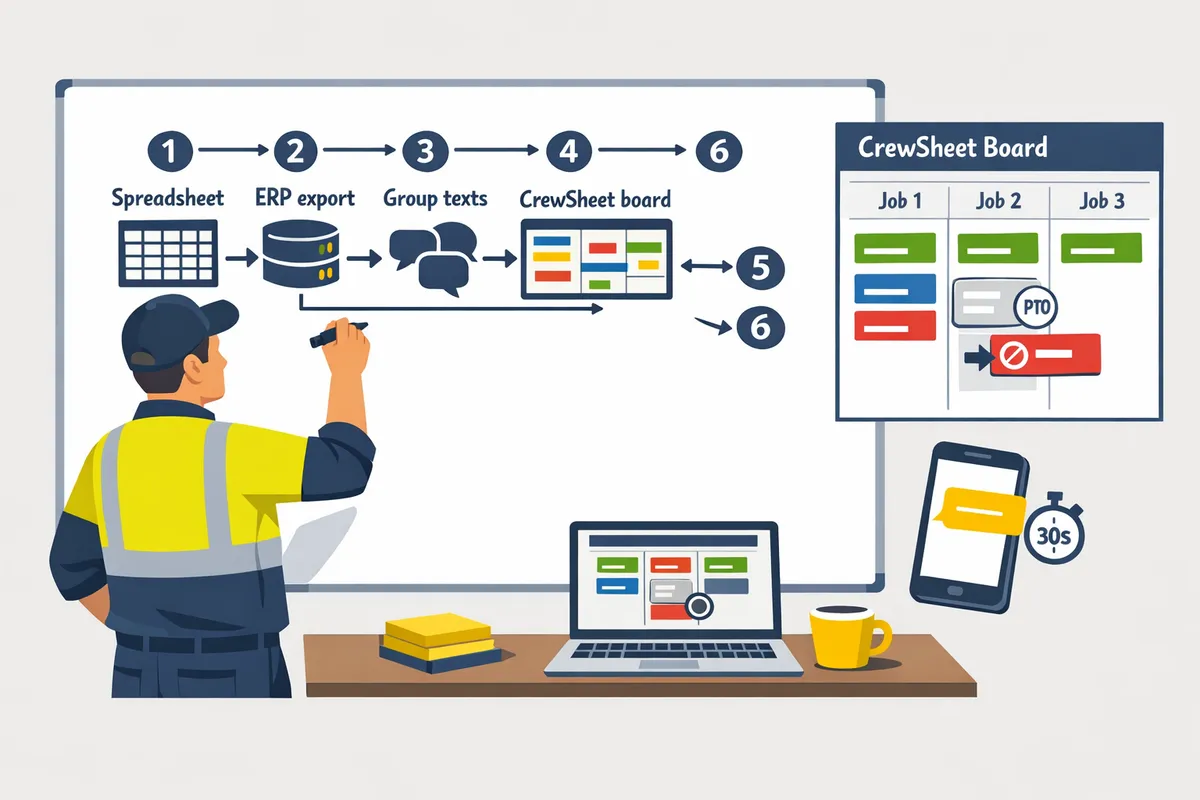
How do I stop double-booking crew members today with a repeatable day-board workflow?
Use a six-step day-board workflow to centralize assignments, enforce single-use crew assignment, and send schedule notifications by SMS. This routine is testable in one week and built to become a daily habit that removes spreadsheet copy-paste errors and group-text chaos.
Step 1 — Centralize jobs and crew on a single-day board 📋
Centralize jobs and crew on a single-day board so the full day's assignments are visible at a glance. Putting every job as a column and the available pool in one view prevents the chief source of overlaps: separate spreadsheets or siloed calendars. Example action. Import the day's jobs and crew CSV into CrewSheet, confirm addresses and start-time overrides, then scan the board for any side-by-side name repeats. Expected outcome. You will spot duplicates immediately and cut the manual recheck time that eats 30–90 minutes each morning. What can go wrong. If your job list is incomplete, run a quick ERP export or CSV import and mark missing entries as "pending" so nothing slips through.
(See our comparison of crew scheduling tools in Crew Scheduling Apps: Best for Construction 2026 for why a day-board beats spreadsheets.)
Step 2 — Enforce the single-use rule for crew assignments 🚫
Enforce the single-use crew assignment rule so no worker can be assigned to more than one job on the same date. Turn on CrewSheet's single-use enforcement or use its duplicate-flagging during drag-and-drop to block repeat assignments before you hit send. Example action. Try a quick test: drag a crew member from the pool to Job A, then attempt to place the same name on Job B and verify the system blocks or flags it. Expected outcome. The board will prevent the most common same-day conflict and force the scheduler to choose a replacement or overstaff intentionally. What can go wrong. If schedulers bypass the board and text changes manually, re-run the pre-send checklist (Step 6) and coach the person who made the bypass.
Step 3 — Make PTO visible and block assignments for those dates 🌴
Make PTO visible and block assignments for those dates so schedulers never place someone on a day off. Sync or import PTO into the day-board so unavailable crew appear grayed-out in the pool and cannot be dragged onto jobs. Example action. Add a daily import of your payroll or HR PTO export to CrewSheet as part of your pre-send routine, or mark PTO manually for last-minute requests. Expected outcome. You will avoid scheduling conflicts with PTO-aware scheduling and reduce morning scramble calls when a worker is actually out. What can go wrong. If PTO exists in a separate system and the sync fails, temporarily mark affected crew as unavailable and notify field leads by message.
(For more on tools that prevent PTO mistakes, see Scheduling Software for Construction Crews.)
Step 4 — Add start-time overrides and travel buffers ⏱️
Add start-time overrides and travel buffers so the board accounts for distance and setup time even on full-day jobs. Use buffer rules tailored to your operation, for example 30 minutes per 20 miles or scale buffer length by crew size and equipment needs. Example action. When you pull jobs onto the board, set a per-job start-time override and add the buffer field; CrewSheet shows the adjusted start and prevents tight back-to-back assignments. Expected outcome. You will reduce late arrivals that force last-minute double assignments and preserve downstream availability. What can go wrong. If buffers are set too short, run a two-week audit of on-time arrivals and increase buffers where delays cluster.
Step 5 — Use message templates and one-click SMS to notify crews 📲
Use message templates and one-click SMS so sending becomes a 30-second, no-anxiety routine that prevents copy-paste errors. Build templates in CrewSheet with placeholders for job name, address, start time, and foreman; confirm character count with the live segment counter before sending. Example action. Choose a template, preview for the selected date, then hit send; CrewSheet writes the send to the audit log and delivers one-way SMS to field crew without requiring logins. Expected outcome. Standardized messages reduce miscommunication and stop staggered follow-up calls that lead to reassignments. What can go wrong. If a template contains stale info, update it and re-send only to impacted crew rather than the whole roster.
💡 Tip: Always use double opt-in for SMS signups where local rules or carrier requirements apply. This protects deliverability and reduces complaint rates.
(See our guide to message best practices in One-Way Field Communication for Job-Site Crews.)
Step 6 — Run a daily pre-send check and keep an audit log ✅
Run a short pre-send checklist and keep an audit log so every send and assignment is traceable if a conflict occurs. Your checklist should verify single-use enforcement, PTO visibility, and start-time buffers, and confirm that templates match the day-board. Example action. Use a numbered pre-send checklist in CrewSheet as the last step: 1) single-use check, 2) PTO check, 3) buffer check, 4) template preview, 5) send. Expected outcome. If a double-booking happens, the audit log shows who made the change and when, which lets you coach the scheduler and adjust the process. What can go wrong. If someone edits the board after sending, flag the change in the audit log and send targeted updates rather than mass re-sends.
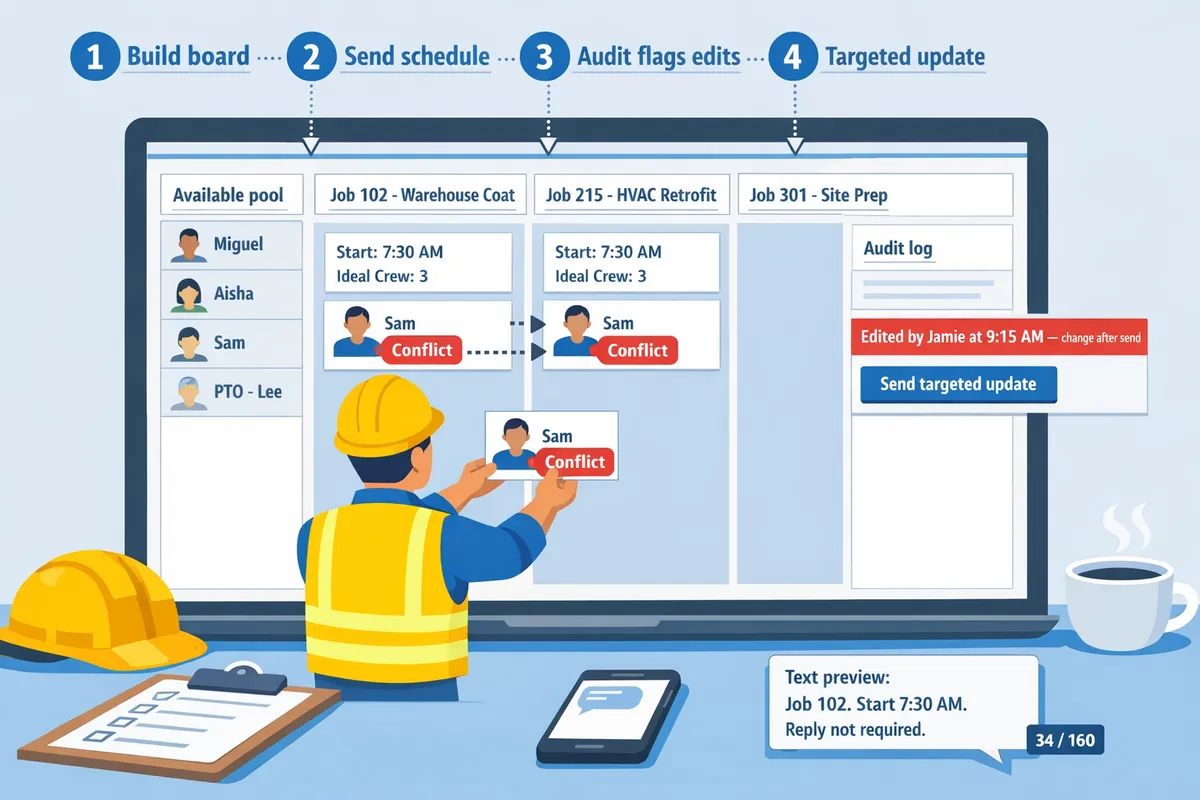
What quick policies, troubleshooting steps, and templates stop repeat conflicts?
A small set of default buffer rules, two SMS templates, a three-rule reassignment matrix, and a seven-day troubleshooting checklist prevent most repeat scheduling conflicts. These guardrails remove guesswork for schedulers, speed recovery from last-minute changes, and pair directly with the day-board workflow.
Set travel and job buffers that match job type 🚧
Set buffer rules by job type and travel distance so schedulers use clear defaults instead of guessing. For example, use a 30-minute buffer for urban short-haul jobs under 15 miles; use 60 to 90 minutes for rural jobs over 30 miles. Written defaults cut back-and-forth calls and reduce last-minute double-assignments. Put those defaults in your scheduling tool so the operator sees start-time constraints while building the board; our CrewSheet day-board displays start times and PTO status so the pool shows who should not be scheduled. Expected outcome: fewer same-day conflicts and fewer urgent calls asking for drive-time estimates.
Use short, repeatable SMS templates for changes ✉️
Keep two short SMS templates so messages stay consistent under pressure: one for routine schedule sends and one for emergency reassignments. Each template should include: job name, address (short), start time, and a one-line reason for the change. Example routine template: "Job: 1047 — Smith Warehouse. 07:30 start. Meet at dock B." Example emergency template: "Shift swap: Move to Job 1050 at 09:00. Reason: crew shortage. Reply to scheduler if you cannot make it." Store these templates in the tool so schedulers pull them instead of copying and pasting from notes. Our CrewSheet message templates include a live character counter and let you pick a template before sending to avoid on-the-fly edits.
💡 Tip: Always use double opt-in for SMS signups so your distribution list stays clean and reduces delivery failures.
See our best practices for push-only crew messages in One-Way Field Communication for Job-Site Crews for timing and compliance rules.
Use a three-rule emergency reassignment decision matrix ⚖️
Follow a strict, ordered matrix so reassignment decisions are fast and repeatable: (1) move the closest available crew, (2) ask an assigned foreman who is free to cover, (3) offer overtime to a nearby crew as last resort. Applying the rules in order shortens decision time and reduces the chance of creating a second conflict. Operational steps: check proximity and job duration in your board, filter pool by foreman role, then only after those checks call for overtime. CrewSheet speeds this by showing who is in the available pool and offering a supervisor-filtered view to identify on-site foremen. What can go wrong: misreading availability or missing PTO flags. Recovery: revert the move, notify affected crews with the emergency template, and log the incident for follow-up.
A quick comparison: spreadsheets, Assignar-style platforms, and CrewSheet
A table makes trade-offs obvious so decision-makers pick the right approach for their team.
| Approach | Effort to operate | Monthly cost range | Double-booking risk | PTO-awareness | Field-worker login required |
|---|---|---|---|---|---|
| Spreadsheets + group texts | Low setup, high daily manual effort | Low direct cost | High | Low (separate systems) | No |
| Assignar-style enterprise platforms | High setup and governance | High (enterprise pricing) | Low | High | Yes |
| CrewSheet | Moderate setup, day-board speed | Moderate flat pricing | Low to medium | Visible PTO in pool | No |
For a longer purchase comparison and context on how these options affect small-to-midsize trades, see Crew Scheduling Apps: Best for Construction 2026 and Scheduling Software for Construction Crews.
Troubleshooting checklist: the first seven days after rollout
Run a seven-day checklist that logs incidents and assigns corrective owners to stop repeat errors. This checklist prevents quick slipbacks to old habits.
- Day 1 — Verify PTO visibility. Owner: Scheduler. Outcome: no crew marked on PTO in the pool for the selected day. Recovery: unblock any missing PTO entries.
- Day 2 — Confirm template integrity. Owner: Office lead. Outcome: two templates match approved wording and are stored in the tool. Recovery: edit typos and resend corrected announcements.
- Day 3 — Check for duplicate assignments. Owner: Scheduler. Outcome: no crew assigned to more than one job. Recovery: unassign duplicates and follow the decision matrix.
- Day 4 — Audit message sends. Owner: Communications lead. Outcome: audit log shows correct recipients and jobs. Recovery: note delivery failures and retry with corrected numbers.
- Day 5 — Field feedback sweep. Owner: Foreman liaison. Outcome: gather 1–2 practical issues from foremen (travel time, address clarity). Recovery: update templates or buffer rules.
- Day 6 — Training refresh. Owner: Ops manager. Outcome: quick 10-minute refresher for schedulers on buffers and the matrix. Recovery: correct misuse of templates.
- Day 7 — Weekly incident review. Owner: Scheduler + Ops manager. Outcome: log reviewed and recurring issues converted into process changes or training items.
Our CrewSheet audit log and template controls make this checklist quick to run and easy to assign owners. Log every incident so weekly reviews produce measurable process improvements.
Frequently Asked Questions
This FAQ gives concise, actionable answers schedulers can use immediately to prevent double-bookings, handle PTO, and pick the right tool. Each answer points to a practical step or CrewSheet capability you can try the same day.
How does a single-use crew assignment prevent double-booking? 🚫
Single-use crew assignment prevents double-booking by blocking any attempt to assign the same worker to more than one job on the same day. This removes the manual cross-check step that fails in spreadsheet workflows and immediately surfaces conflicts at assignment time. In CrewSheet, single-use enforcement prevents a drag-and-drop from completing when a clash exists, so the operator either reassigns or intentionally overrides with a documented reason. Expected outcome: fewer last-minute reassignments and reduced emergency calls to field leads.
Can PTO-aware scheduling stop most accidental assignments? 🧾
Yes. PTO-aware scheduling stops most accidental assignments by showing PTO directly in the day-board pool so schedulers cannot place someone who is marked out. Make PTO visible by importing your PTO calendar or entering days off during the build step so grayed-out crew cannot be assigned. CrewSheet shows unavailable crew in the pool for the selected date, which reduces the common error of scheduling someone who was recorded in a separate PTO system. What fails most often is late PTO entry; set a simple cutoff for same-day PTO entries or require a quick flag in the day-board to capture last-minute changes.
What are realistic buffer rules I can apply right away? ⏱️
Realistic buffer rules depend on travel distance and job setup complexity. Use these starting ranges and adjust after two weeks of monitoring:
- Short urban jobs (same neighborhood): 15 to 30 minutes buffer.
- Suburban or moderate-traffic jobs: 30 to 45 minutes buffer.
- Rural or high-setup jobs: 45 to 90 minutes buffer.
Start conservative and run the rule for two weeks while tracking on-time starts. If you consistently hit windows early, reduce the buffer in 10-minute steps. Buffers protect downstream schedules and make accidental double assignments less harmful by leaving time to reassign without cascading delays.
💡 Tip: Start with conservative buffers for the first two weeks and reduce them only after you confirm on-time starts remain above your goal.
How quickly can I notify crews of a schedule change? ✉️
You can notify crews quickly by using pre-written SMS templates and a one-click send workflow that attaches job details and start time. One-way SMS works best because field workers do not need to acknowledge; they receive location and start-time details and act. CrewSheet stores message templates with a live character counter so operators pick a template, confirm recipients, and hit send without rewriting.
⚠️ Warning: Avoid including personal health information in SMS messages and follow your company's privacy rules when texting crew.
Is CrewSheet a practical alternative to spreadsheets for small trades teams? ✅
Yes. CrewSheet keeps the spreadsheet-like flexibility operators prefer while adding enforcement and visibility that spreadsheets lack, such as single-use rules, visible PTO in the pool, and one-click schedule sends. If your current workflow is Google Sheets plus group texts, CrewSheet reduces manual copy-paste steps, prevents same-day clashes, and removes the need for field-worker logins. See our comparison in Crew Scheduling Apps: Best for Construction 2026 and review the specific capability list on the CrewSheet features page to assess fit for your team.
How do I measure the ROI of preventing double bookings? 📈
Measure ROI by calculating hours saved from fewer reschedules, reduced emergency overtime, and avoided client make-goods, then multiplying saved hours by your labor rate and comparing that to the cost of the tool or process change. Steps to follow:
- Run a pre-rollout audit for 30 days and record reschedule hours, overtime hours, and customer make-good events.
- Implement the single-use rule, PTO visibility, and notification templates. Track the same metrics for the next 30 days.
- Calculate savings: (pre-rollout hours − post-rollout hours) × labor rate − tool cost = net benefit.
For example, if you reduce emergency overtime by ten hours a month at $35 per hour, that equals $350 monthly—compare that to your tool or staffing change cost to see payback. Use the audit numbers you gathered for an apples-to-apples comparison.
Final checklist to stop double-booking crew members today.
If you followed the steps, you now understand how to avoid double-booking crew members on a job by using PTO-aware scheduling, visible single-use assignments, and clear SMS sends. That mix cuts scheduling errors and saves the hours crews lose resolving conflicts. Crew Sheet makes enforcing single-use assignments and sending start-time SMS a simple, repeatable action.
You should now have a day board that blocks clashes, a marked PTO pool, and at least one message template ready to send. These practices help prevent double booking crews and reduce last-minute calls, rework, and overtime. For more on push-only messaging and timing rules, see our guide to one-way field communication.
💡 Tip: Mark PTO before you build the board and use a single template per send window to reduce manual edits and mistakes.
Try Crew Sheet by creating your first day board and sending a test schedule. Subscribe to our newsletter for bite-sized scheduling tips and template examples.