Foreman View Schedule Tomorrow PDF Pack
Foreman View Schedule Tomorrow PDF Pack
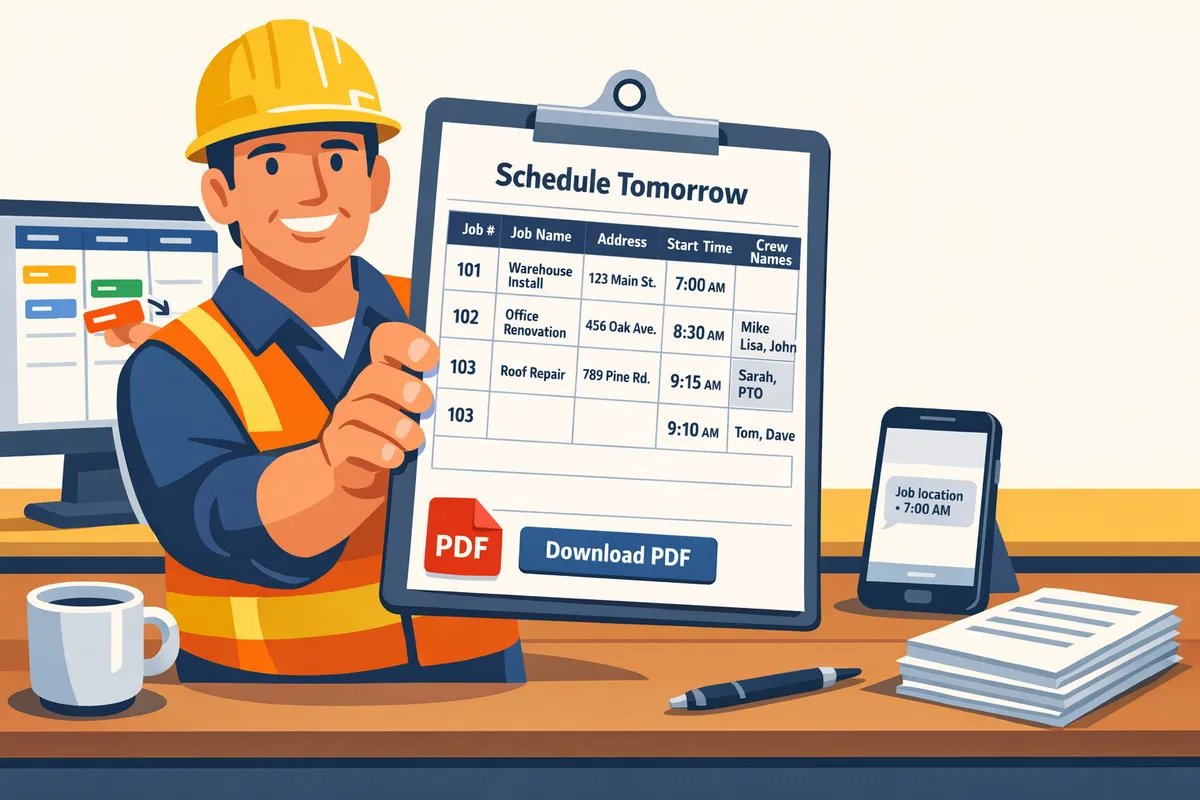
Exporting a foreman view schedule tomorrow pdf from a spreadsheet can take 15–30 minutes of copying and reformatting. Foreman View is a filtered scheduling view that shows the roster for a single foreman's job on a selected date. Our Crew Sheet templates and workflows let operators build the day on the schedule board and generate a printer-ready PDF without manual layout work. The step-by-step export uses the foreman filter, a downloadable template pack, and Crew Sheet's CSV-friendly roster tools to keep PTO and single-use rules intact. Use the schedule board guide and assigning crew documentation to match this export to your existing process. Later in the article we show how to tailor templates to include start times, addresses, and foreman notes.
Which printable 'Who's On My Job' template should a foreman use for tomorrow's PDF?
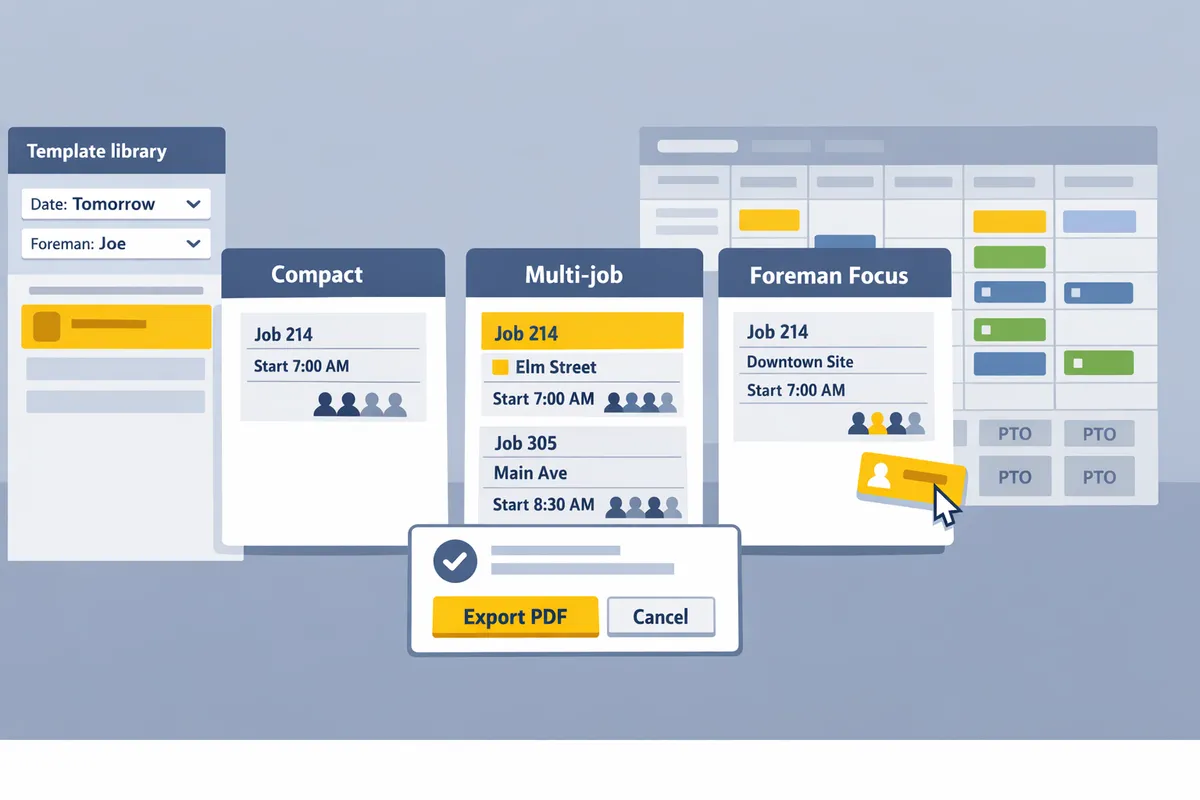
Use the Compact one-page roster for small crews, the Multi-job two-column sheet for split days, and the Foreman Focus layout when clarity and phone numbers must appear first. These three templates give foremen exactly the job, start time, and contact details they need at a glance and cut morning calls. CrewSheet fills each template from the filtered foreman view so schedulers export a ready-to-print PDF that matches the live board.
What each template field should include and why 🗂️
Each roster should show job number, address, start time, foreman name, crew roster, primary phone numbers, and a one-line job note. Job number ties the sheet back to accounting and dispatch records so office staff and field leads use the same identifier. Address plus a short parking/directions line stops crews from arriving on the wrong side of a site. Start-time and start-time override prevent wrong-shift arrivals when a job uses a nonstandard start. Foreman name and primary phone first shorten call chains; listing phone numbers next to each crew name reduces the need for radio check-ins.
- Job number. Use the exact job number from your ERP or estimating sheet. This avoids mismatched invoices.
- Address. Include unit, building, or gate code where applicable.
- Start time (and override). Note both default and date-specific start-time overrides.
- Foreman name and primary phone. Bold the foreman and put the phone first.
- Crew roster. List role or trade next to each name if helpful.
- Job note. One short line for safety items, parking, or permit details.
💡 Tip: Verify the start-time override before exporting the "foreman view schedule tomorrow pdf." A 30-minute override prevents a single missed crew arrival that can cost a whole day of billable time.
CrewSheet supports per-job start-time overrides and pulls contact details from crew profiles so the exported PDF uses current phone numbers and PTO-aware assignments. See the step-by-step routine in Foreman View: Who Is On My Job Tomorrow and the assignment details in the schedule board docs.
Compact template (one job per page) 📑
The Compact template prints one job per page and fits crews of 3–6 with short travel times. Layout prioritizes start time, address, foreman, and a tight crew list so a foreman can tuck the sheet into a clipboard. Use this for coatings crews or small HVAC teams where directions are simple and the job note is brief.
Example: a coatings crew with one foreman and four techs prints on a single page with two columns: name and phone. Use the 3-, 4-, or 5-person pack depending on crew size to avoid wasted white space.
CrewSheet workflow: filter the foreman view for tomorrow, pick the Compact PDF template in the Templates library, and export. For a full how-to on building the day board that feeds the template, see The schedule board and the Assigning crew guide.
Multi-job template (two-column) 🗂️
The Multi-job template places two jobs per page in a column grid and works for days with 3–8 jobs or when a foreman splits time between sites. Each column contains job number, address, start time, foreman, crew members, and a short job note area for directions or permit numbers. This layout reduces paper and keeps side-by-side jobs visible without flipping pages.
Example: a multi-site HVAC schedule with two foremen and staggered start times fits the Multi-job layout so office staff and foremen can compare timelines at a glance. Use CrewSheet to copy assignments between dates and export the filtered view directly to this two-column PDF.
Foreman Focus template (large text, phones first) 📞
The Foreman Focus template emphasizes phone numbers and large type so field leads can read the sheet across a noisy site or from a distance. It prioritizes foreman and primary phone at the top, enlarges the address and start time, and uses a single-line safety or equipment note.
Example: noisy abrasive-blast sites or older crews benefit from a Foreman Focus sheet where the phone column appears before names and the job note highlights permit or PPE requirements. CrewSheet auto-fills contact fields from crew profiles so the phone-first layout always prints up-to-date numbers.
Ready-to-download PDF templates and example packs 📄
We provide three export-ready PDF packs sized for common crew counts and layouts so schedulers can pick, export, and print in under five minutes. Packs include:
- Compact packs for crews of 3, 4, and 5 people (one job per page).
- Multi-job packs optimized for 2-column printing covering 3–8 jobs per page.
- Foreman Focus variants with larger fonts and phone-first columns for 3–6 person crews.
Each pack is designed to match the filtered foreman view so the exported "foreman view schedule tomorrow pdf" reflects live assignments. Use the Templates library inside CrewSheet to select a pack, then export the PDF after filtering by foreman or date. For workflow context, reference Foreman View: Who Is On My Job Tomorrow and The schedule board to ensure assignments and PTO are correct before export.
When to choose compact vs detailed crew rosters
Choose Compact for short drives and 3–6 person crews; choose Multi-job or Foreman Focus for split days, multiple foremen, or when directions and safety notes are required. Compact saves paper and reduces prep time for single-site days. Multi-job reduces page flipping when a foreman covers multiple locations in a day. Foreman Focus reduces on-site confusion when reading distance or noisy environments matter.
Example scenarios:
- Coatings crew with one foreman and four techs. Choose Compact to print one clear sheet per job.
- Multi-site HVAC day with two foremen and staggered starts. Choose Multi-job so both foremen can compare start times across columns.
- High-noise abrasive-blast site where phone contact must be immediate. Choose Foreman Focus so phone numbers and safety notes appear first.
Manual PDF assembly from a spreadsheet typically takes 15–30 minutes and increases the chance of wrong phone numbers, missing PTO checks, and last-minute calls. CrewSheet reduces that risk by pulling live crew profiles, honoring PTO, and letting schedulers export the filtered foreman view directly to the right template.
For implementation steps, see Assigning crew and The schedule board. For template examples and ready packs, open CrewSheet's Templates library and export the matching foreman-filtered PDF.
How do I export a foreman-filtered 'schedule tomorrow' view to PDF from Crew Sheet?
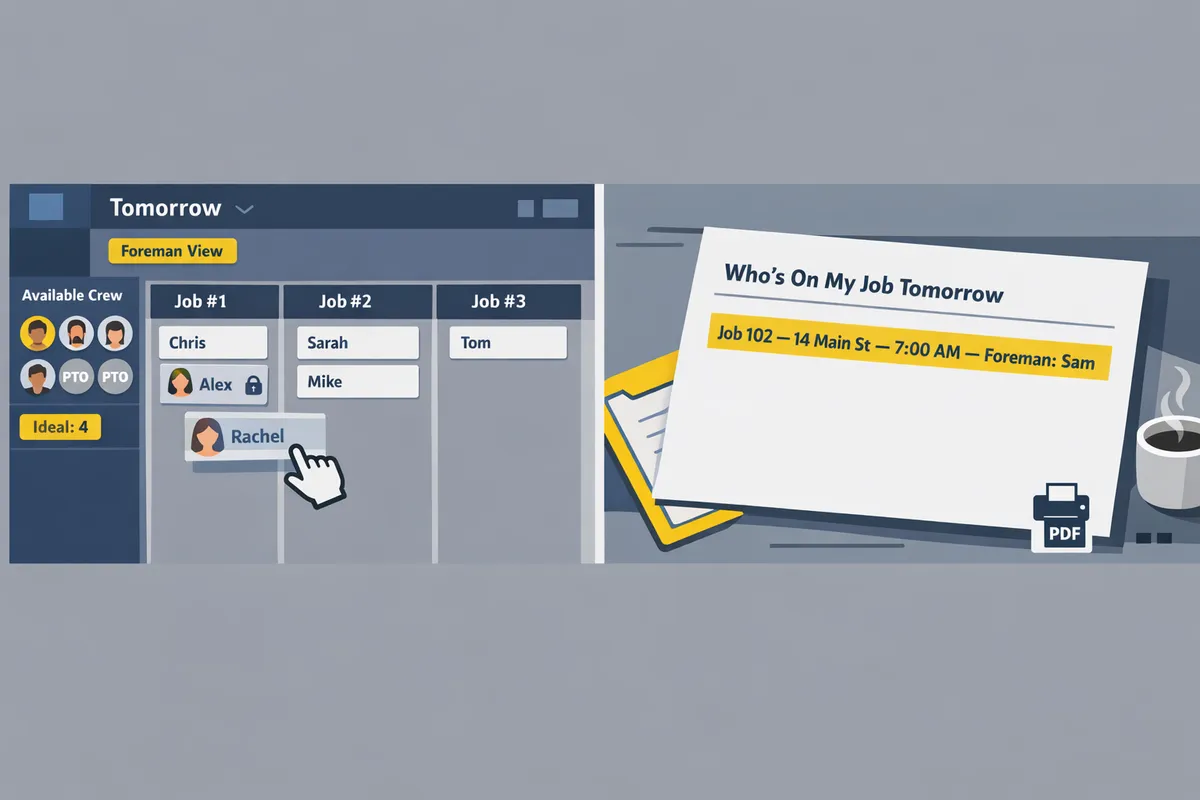
Open the Crew Sheet Day board, set the date to tomorrow, filter by the foreman or job, then choose Export and pick the "Who's On My Job" PDF template. This generates a printable roster showing assigned crew, start times, contact info, and PTO marked as unavailable. The steps below show the exact clicks, recommended print settings, and a side-by-side table comparing PDF, ICS, and CSV so you pick the right output for the job.
Step-by-step export tomorrow's Foreman view from the schedule board 📋
Open the Crew Sheet Day board, change the date to tomorrow, apply the foreman filter or select the specific job, and use Export → PDF.
- Open the Day board from the schedule menu and confirm the board shows the target date. Use the quick date picker to jump to tomorrow.
- Filter by the foreman name or click the job column to isolate that job's roster. Confirm the view shows the assignment list you expect.
- Verify PTO entries appear grayed out in the pool and on job cards so you do not print someone who is off.
- Click Export, select the "Who's On My Job" PDF template (Compact, Multi-job, or Foreman Focus), then preview.
- Save the PDF or send it to your printer. Keep a working copy for the office and a printed copy for the foreman if the jobsite lacks reliable cell service.
Refer to our Day board walkthrough and the Foreman View guide for sample routines and templates: The schedule board and Foreman View: Who Is On My Job Tomorrow.
PDF layout and print settings for readable rosters 🖨️
Use landscape when addresses or notes widen the roster, set a minimum 11pt font, and avoid fit-to-page if the roster spans more than two pages.
- Orientation: Landscape for wide addresses or multiple columns. Portrait works for single-column Compact rosters.
- Font size: 11pt minimum for legibility on job trailers and morning briefs.
- Scaling: Enable fit-to-page only for rosters that remain one or two pages; otherwise the text becomes unreadable on a clipboard.
- Template choice: Use Compact one-page roster for small crews, Multi-job two-column sheet for split-day or larger crews, and Foreman Focus when phone numbers must appear first.
- Large crews: For crews of eight or more, pick Multi-job templates with one job per column to keep type at a readable size.
💡 Tip: Print a single copy first and walk the foreman through the PDF preview. That quick check avoids reprints and the last-minute calls that cost time on a busy morning.
Crew Sheet's export control remembers the template you used last, so switching templates and re-exporting takes seconds.
PDF vs ICS vs CSV: which export fits each use case 📊
Use PDF for a printable foreman briefing, ICS to drop start times into personal calendars, and CSV for payroll, auditing, or bulk data work.
| Export Type | Readability (print) | Editability | Best use case | Crew Sheet notes |
|---|---|---|---|---|
| High for printed rosters and clipboards | Low for bulk edits; meant for final distribution | Morning briefings, foreman walk sheets, site sign-in | Exports choose templates like Compact or Foreman Focus and preserves PTO visibility. | |
| ICS | Medium on print; ideal in calendar apps | Low in text editors; editable when imported into calendar apps | Add start times to a personal calendar or share with subcontractors' calendars | Crew Sheet writes start times and job title into the event for each assigned crew member. |
| CSV | Low readability for human briefings | High for spreadsheet edits, payroll systems, and audits | Payroll, accounting imports, mass reporting | CSV includes job ID, start time, assigned crew, and PTO flags for downstream systems. |
Choose PDF when you need a clean, on-site roster that the foreman can post or carry. Pick ICS when individuals want calendar reminders. Export CSV when your office needs structured data for payroll or compliance reports.
For scheduler best practices and templates that reduce morning chaos, see our Scheduling Software for Construction Crews overview and the onboarding guide in Welcome to CrewSheet.
How can schedulers customize the template and workflow to match daily crew routines?
Schedulers customize templates and workflows by saving a dedicated "tomorrow" preset, turning on PTO and start-time overrides, and following a short four-step send checklist so exporting a foreman view schedule tomorrow PDF takes about 30 seconds. This reduces last-minute calls and prevents assigning crew who are on PTO. Below are concrete toggles, a reusable checklist, and trade-specific template examples you can copy into Crew Sheet.
Custom fields and toggles to prevent scheduling mistakes ✏️
Enable PTO visibility, per-job start-time overrides, and a Foreman notes column so the schedule shows who is unavailable and any site-specific exceptions. In Crew Sheet, the PTO-aware pool marks crew grayed-out for the selected date; turn that view on before assigning crew to avoid accidental bookings (see the schedule board docs for where the PTO toggle lives).
Add these fields to your printable crew roster template in Crew Sheet:
- PTO flag. Shows "PTO" next to names and prevents accidental assignment. Example: if Jaime shows PTO for tomorrow, the pool blocks assignment and the PDF roster lists Jaime as unavailable.
- Per-job start-time override. Use this when a job starts earlier than the default. Example: a coating prep crew needs a 6:00 a.m. start; set a per-job override so the exported foreman daily schedule PDF lists 6:00 a.m.
- Foreman notes column. Use short, actionable notes (access gate code, required PPE, materials pickup) so foremen have the essentials at glance.
Crew Sheet links: enable these in the Day board and check our assigning crew guide for step locations and screenshots. Linking these fields to the printable roster prevents common mistakes like double-booking or texting someone on their day off.
Build and save a 'tomorrow' template and a 4-step send checklist ✅
Save a "tomorrow" template that pre-selects layout and fields in Crew Sheet, then use a four-step checklist: 1) set date, 2) apply the foreman or job filter, 3) verify PTO and headcount, 4) export the PDF and send. Saving the preset prevents manual field toggles and cuts proofing time.
How to build the preset in Crew Sheet:
- Open the Day board and arrange column order and visible fields the way your foremen use them (name, start time, phone, notes).
- In the Export or Send dialog, create a template and name it "Tomorrow — Compact" or "Tomorrow — Notes" so schedulers pick the right layout fast.
- Save both a compact one-page and an expanded notes template for different trades.
Four-step checklist (copyable):
- Set date to tomorrow on the Day board.
- Apply foreman or job filter (use the Foreman View to confirm assignments).
- Verify PTO overlay and count assigned crew against ideal crew size. Check start-time overrides where needed.
- Export PDF using the saved "tomorrow" template and send via SMS or email.
💡 Tip: Make verifying PTO the second item on your printed checklist so it becomes habit. That single check prevents most emergency reassignments.
Reference our foreman roster guide and the schedule board docs for screenshots and step pointers to saving templates and using filters.
Template examples for coatings, HVAC, and small crews 🧰
Choose the template variant that matches morning priorities: compact roster for coatings, expanded notes for HVAC, and minimal roster for very small crews. Below are concrete column orders and a sample filled note for each trade.
Coatings (Compact one-page roster).
- Recommended columns: Job name, Address, Start time, Materials needed, Crew names, Foreman notes.
- Example Foreman note: "Scaffold south side; epoxy primer on-site; meet at 6:00 a.m."
- Why: coatings crews need location and materials info printed on one page for quick toolbox talk.
HVAC (Foreman Focus, larger notes field).
- Recommended columns: Job name, Start time (override visible), Access instructions, Permit or PO number, Crew names, Phone numbers, Foreman notes.
- Example Foreman note: "Unit on roof. Bring ladder, vent kit. Call contact 555-0123 for gate code."
- Why: HVAC techs need detailed access and equipment notes that won't fit on compact layouts.
Small crews (Compact / Minimal).
- Recommended columns: Job name, Start time, Crew names, Primary phone.
- Example Foreman note: "Two-person crew. Meet at site trailer by 7:30."
- Why: small crews prefer a one-line roster that fits on a phone or single printed sheet.
Use Crew Sheet to save each variant and name them for trade (for example, "Tomorrow — Coatings Compact", "Tomorrow — HVAC Notes"). When you export the foreman view schedule tomorrow PDF, choose the template that matches the crew to avoid unnecessary information or missing details.
For step-by-step instructions on assigning crew and using the Day board filters, see our Day board guide and the Foreman View: Who Is On My Job Tomorrow article on our website.
Export a foreman-ready PDF for tomorrow from a filtered supervisor view.
A single filtered supervisor roster prevents last-minute phone trees and missing crew. Use the filtered "who's on my job" view to confirm assignments, PTO, and start times before you export.
Open the CrewSheet supervisor view, apply the job filter for the foreman, and export the printable crew roster template as a PDF. Save that file with a clear name so the foreman can open it offline. That exported file is your foreman view schedule tomorrow pdf and works as a quick handout or site-ready checklist.
If you want step-by-step guidance, follow our Foreman View: Who Is On My Job Tomorrow article for the morning routine and two ready-to-use roster templates. Use the schedule board guide to speed up assignment and avoid double-booking before you export.
💡 Tip: Verify PTO and the single-use rule on the day board before exporting to avoid emergency reassignments.
Download the PDF pack from the Foreman View resource page to get the printable templates and a short checklist you can use tomorrow.