Convert Gantt Chart to Daily Schedule: 2-Week Lookahead

Convert Gantt Chart to Daily Schedule: 2-Week Lookahead
A Gantt chart shows bars, and a crew needs names, a job and a start time for each day. To convert a Gantt chart to a daily schedule, cut the chart to the next two weeks, split each bar into one line per working day, set a crew count and start time per line, then put names on every line. This guide walks that through for an office scheduler, with one worked example you can copy.
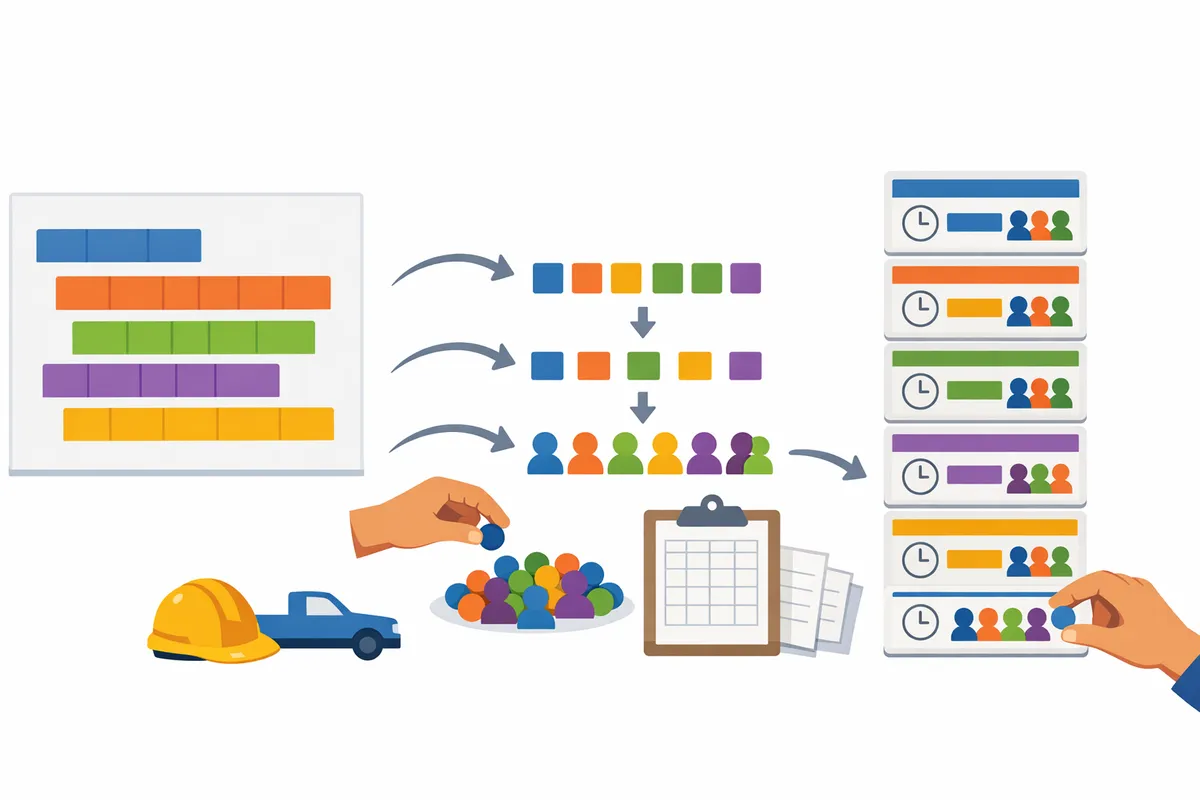
What does it mean to convert a Gantt chart to a daily schedule?
It means turning bars that span several days into one line per day, each with a job, a start time and a list of people. The Gantt chart answers "when does this activity run." A daily schedule answers "who is on which job tomorrow, and when do they show up."
Most trade contractors never get the second answer from the general contractor. You get the master schedule, or a two to three week lookahead cut from it, and you are left to build the crew plan. If you want the background on why those documents differ, see L1, L2 and L3 schedules, from CPM to day board and CPM vs Gantt vs pull planning.
Step 1: Cut the Gantt down to your trade and the next two weeks
Keep only the bars that start, run or finish inside the next 14 days and that your crews do. Public lookahead guides describe the same first move: filter the master schedule to the next 21 days and treat the result as raw material, not the finished plan. Two weeks is enough for crew planning because beyond that your headcount is a guess.
For each surviving bar, write down four things:
- the job number or name
- the first and last working day
- how many people the work needs per day
- any fixed start time or access limit (a gate that opens at 7:00, a floor that is only free after noon)
If the bar is a phase like "interior finishes" with no crew count, ask the foreman or the GC's superintendent before you go on. A bar you cannot hand to a crew is not ready to schedule.
Step 2: Split each bar into one row per working day
Each working day inside a bar becomes its own row, and weekends and site holidays drop out. Bars drawn on a calendar skip non-working days, as in this construction Gantt example where a two-day task starting on a Saturday finishes Monday. Your rows must skip them too.
If you keep the expansion in a spreadsheet, put a header row in row 1 and work from row 2. Excel and Google Sheets both support this formula for a finish date from a start date and a duration in working days:
=WORKDAY(B2, C2-1)
With the start date in B2 and the number of working days in C2, a three-day job starting Monday returns Wednesday. Add a holiday range as a third argument if the site closes on a day your calendar does not. Then give each day its own row with these columns: Date, Job number, Job, Start time, People needed, Names.
Step 3: Add crew counts and start times to every row
Every row needs a headcount and a start time before any name goes on it. The headcount is what the Gantt chart cannot give you, so take it from the foreman, the estimate or last time you ran this kind of work.
Add the rows for each date. The total for a date is the number of people you must find that day. If that total is higher than your roster minus anyone on time off, you have a conflict now, not on Monday morning. A start time that differs from the usual one on a single date is a normal case, so note it on that row.
Step 4: Put names on every row and catch conflicts
Assign people one date at a time, and make sure nobody appears on two jobs on the same day. Keep a foreman or lead with each crew, keep crews together across a job's days when you can, and move people between jobs only where the headcount changes.
A conflict is easy to miss on a sheet that is 40 rows long. See how to avoid double-booking crew members for the checks that catch it.
Worked example: a coatings sub with three jobs and seven people
A coatings subcontractor with seven field workers can turn three Gantt bars into seven day plans in about a page of rows. The Gantt chart shows these bars for the two weeks starting Monday, November 9:
| Job | Gantt bar | Working days | People per day |
|---|---|---|---|
| 2104 Warehouse floor coating | Mon Nov 9 to Wed Nov 11 | 3 | 4 |
| 2107 Stair tower recoat | Tue Nov 10 to Thu Nov 12 | 3 | 2 |
| 2111 Parking deck prep | Thu Nov 12 to Tue Nov 17 | 4 (weekend skipped) | 3 |
Split into days, that is 10 job-days. Adding the people needed per date gives the load:
| Date | Jobs running | People needed | Names |
|---|---|---|---|
| Mon Nov 9 | 2104 | 4 | Ruiz (lead), Kim, Okafor, Lopez |
| Tue Nov 10 | 2104, 2107 | 6 | 2104: Ruiz, Kim, Okafor, Lopez. 2107: Patel (lead), Nguyen |
| Wed Nov 11 | 2104, 2107 | 6 | Same as Tuesday |
| Thu Nov 12 | 2107, 2111 | 5 | 2107: Patel, Nguyen. 2111: Ruiz (lead), Kim, Cho |
| Fri Nov 13 | 2111 | 3 | Ruiz, Kim, Cho |
| Mon Nov 16 | 2111 | 3 | Ruiz, Kim, Cho |
| Tue Nov 17 | 2111 | 3 | Ruiz, Kim, Cho |
The roster is Ruiz, Kim, Okafor, Lopez, Patel, Nguyen and Cho. Cho has Tuesday and Wednesday off. That leaves exactly six people for the six-person days, so there is no slack. The sheet shows the problem the moment you total a column. If one more person calls in sick on the 10th, one job runs short, and you need to decide which one before the text goes out.
You run this once a week. Roll the window forward by a week, add the new bars and reuse the crews that stay on a job.
How CrewSheet turns the same plan into a day board
CrewSheet replaces the row-per-day sheet with a day board where jobs sit side by side and you drag people onto them. The board shows the day as the foreman will see it, so the check in step 4 happens as you place people instead of after.
What carries over from the steps above:
- Jobs and crew come in by CSV. CrewSheet does not connect to Primavera or any other scheduling tool, so the jobs from step 1 go in as a CSV with columns auto-detected, a preview to fix mapping errors, and a saved mapping for next time. Re-importing a jobs file matches on job number and updates the jobs instead of duplicating them. Import jobs and crews from spreadsheets covers the file layout.
- One job per person per day. By default the board blocks a second assignment and shows the conflicting job, so the double-booking check is automatic. You can allow double booking in settings or override a block with a confirmation.
- Time off is visible. Someone on PTO shows grayed out in the pool, with the reason and dates on hover, and gets no text. Partial-day PTO shows the hours and warns instead of blocking.
- Same crew, next day. Copy a day to another date, then override a start time for that one date only.
- Crew size. Each job shows an ideal crew size. Overstaffing is allowed.
Once the day is set, each person gets a text built from a template with their own job, address, start time and crew lead. You can preview it for a sample person and send yourself a test first. Crew need no app or login, and a weekly send gives each person one message with all their days. If a start time or crew changes after texts went out, the job is flagged so you know to tell people. Building the board and sending the texts takes under 30 seconds once the jobs are in.
To see it with your own bars, try the self-serve demo or book a 15-minute live demo at CrewSheet.
Common mistakes when you convert a Gantt chart to a daily schedule
The usual failures are counting weekend days, skipping the headcount and assigning people before totalling the day.
- Counting calendar days. A bar from Thursday to Tuesday is four working days, not six.
- No headcount on the bar. Without a number per day, nobody can tell whether the roster covers the work.
- Assigning before totalling. Total the people needed for each date first, then compare it to the roster minus time off.
- Treating the lookahead as fixed. Bars move. Rebuild the window every week and keep the daily plan to the days you can commit to.
FAQ
Can I automatically convert a Gantt chart to a daily crew schedule?
Not without a person in the loop, because a Gantt chart has no crew counts or names. You can export dates from the chart, but the headcount per day and the assignments come from you and the foreman.
How far ahead should a daily crew schedule go?
Two weeks is a workable window. Look-ahead guides run from two to six weeks, but crew counts further out are guesses, so plan days in detail only as far as you can commit.
What is a 2-week lookahead?
It is a short-range plan cut from the master schedule that shows the next two weeks of work at crew level. It sits between the master schedule and the daily crew plan.
Do I need a spreadsheet for this?
No, but most schedulers start with one. A sheet with Date, Job, Start time, People needed and Names columns is enough for one trade and a few jobs. It gets slow when several jobs overlap and people move between them.
Does CrewSheet read a Gantt chart file?
No. CrewSheet has no integration with scheduling tools. You bring jobs and crew in by CSV, then build the days on the board.