Import Jobs and Crews from Spreadsheets

Import Jobs and Crews from Spreadsheets
Copying 200 rows from a payroll export into a daily schedule can take an hour and often introduces missed phone numbers or PTO conflicts. Import jobs and crews from spreadsheets to a day board is a practical integration that moves CSV or Excel job and crew exports into Crew Sheet's day board while preserving start times, PTO flags, job numbers, and contact details. Our guide shows schedulers how to map columns and import jobs and crew lists onto our drag-and-drop day board to prevent double-booking and broken message templates. Expect the basic import and mapping to take about 10 minutes, after which you can build the roster and send SMS without forcing field workers to create logins. A few column-naming tips will prevent the most common errors and save hours each week.
What do you need before importing jobs and crews from spreadsheets to a day board?
You need two clean CSV exports (jobs and crew), a column-mapping plan, normalized contact and PTO data, and unique job IDs so CrewSheet can place records on the Day Board without manual re-entry. Preparing these items up front prevents hours of manual fixes and avoids scheduling mistakes like double-booking people on PTO. The checklist below names file formats, the minimum columns CrewSheet expects, and quick pre-import quality checks.
What file formats and templates are supported? 📁
CrewSheet accepts CSV files for both Jobs and Crew imports and provides a pre-formatted CSV import template to match required fields. Export from Excel or your ERP as CSV (UTF-8 if available). Use our CSV import template so column names match CrewSheet's auto-detection rules and reduce mapping steps during upload. Importing jobs from a spreadsheet explains job mapping; Importing crew from a spreadsheet covers crew mapping.
Required job columns (minimum):
- Job Number. Unique ID that CrewSheet uses to place the job card on the Day Board. Do not reuse IDs.
- Job Name. Short descriptive label used on the card.
- Address. Full address or site descriptor for SMS messages.
- Start Date. YYYY-MM-DD preferred.
- Default_Start_Time. Use 24-hour or AM/PM consistently (e.g., 07:30 or 7:30 AM).
- Ideal_Crew_Size. Integer for planning guidance (CrewSheet shows but does not enforce it).
Required crew columns (minimum):
- Full Name. One column for first + last if possible.
- Phone. E.164 preferred (for example, +12223334444). CrewSheet sends SMS to this field.
- Email. Optional; used if you send email instead of SMS.
- Role. Label like foreman or crew to help filtering on the board.
If your CSV headers differ, rename them to match the template before upload to speed the auto-mapping step.
How should I prepare a Primavera P6 export? 📤
Export Primavera P6 as CSV with activity IDs, resource assignments, planned start dates, and resource roles so you can map P6 fields to day-board jobs and crew. Use "Primavera P6 export to CSV for crew scheduling" as a search term when choosing P6 report options to find the right export layout. Export two sheets if possible: one for activities and one for resources.
Activity export should include these columns:
- Activity ID (use this as Job Number or map it to a new Job Number column)
- Activity Name (maps to Job Name)
- Planned Start (maps to Start Date)
- Primary Resource or Resource Assignment (used to match people to Crew)
Resource export should include:
- Resource ID
- Resource Name
- Phone and/or Email (if stored in P6)
If P6 breaks a site into many short activities, aggregate by site or add a Job Number column before you import. Aggregation options: group activities by site code, use a VUDF to set a single Job Number per site, or run a pivot to create one row per site. Mapping aggregated rows to the Day Board avoids dozens of tiny job cards in CrewSheet. After export, follow the job import steps in Importing jobs from a spreadsheet.
What data quality checks should I run? ✅
Run deduplication, normalize phone numbers to E.164, flag PTO, and add unique job IDs before import. These checks reduce failed imports and cut hours of manual cleanup after upload.
Checklist to run before each import:
- Remove or merge duplicate names. Combine variants (for example, Bob -> Robert) so a single resource record exists per person. Duplicates lead to multiple pool entries on the Day Board.
- Convert all phone numbers to E.164 (for example, +12223334444). CrewSheet uses the phone field for SMS; inconsistent formats cause undelivered messages or import warnings.
- Add a PTO marker. Either add a PTO column with date ranges or export PTO as a separate CSV; CrewSheet will grey out those resources on the Day Board for the affected dates.
- Ensure Job Number uniqueness. Reused or missing job IDs force manual reconciliation and duplicate job cards.
- Run a quick preview import on a 10-row sample to validate column mapping and data formats before full upload.
💡 Tip: Standardize phone numbers before import; correcting formats after a failed import adds hours of manual work.
For crew-specific checks, follow Importing crew from a spreadsheet and test how PTO appears on the schedule in The schedule board. These checks make the Day Board build and the final send step much faster.
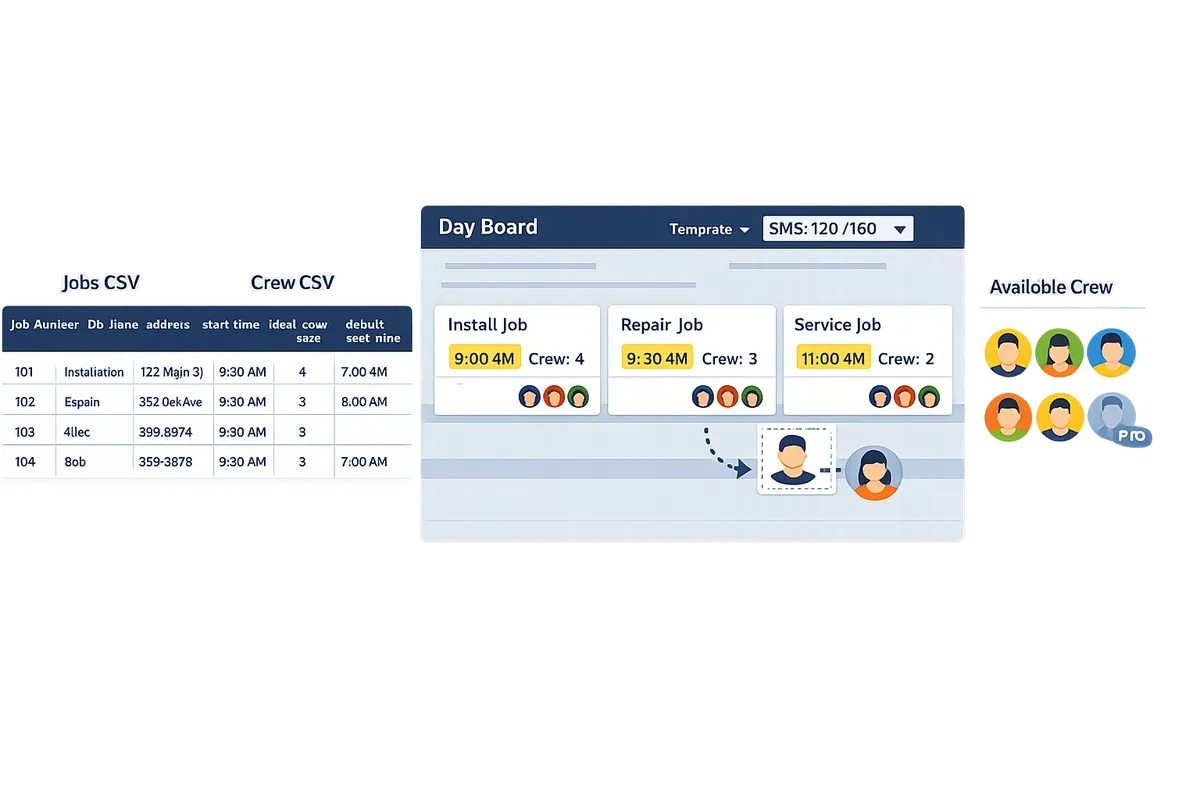
How do you import jobs and crews from spreadsheets to a day board using CrewSheet?
Use CrewSheet's CSV import workflow on our site to upload Jobs and Crew files, map columns to CrewSheet fields, preview row-level validation, and then commit records to the Day Board. This section walks operators through the upload, mapping, validation, and the first "Copy to Day Board" step with exact actions to perform.
Step 1. Upload files and choose import type 🔼
Start by uploading your Jobs CSV, Crew CSV, or both using the CrewSheet import dialog on our site. Choose the Jobs option for job-only imports and the Crew option for resource-only imports. If you exported both from Primavera P6 export to CSV for crew scheduling, upload both files in the same session so CrewSheet can attempt to auto-link rows by Job Number or Activity ID.
Files should be standard CSVs with a single header row. Use our importing jobs from a spreadsheet guide for job-specific header expectations and our importing crew from a spreadsheet guide for crew fields. If headers match CrewSheet template names the importer will auto-detect mappings; otherwise pick the closest match in the mapping step.
Step 2. Map columns and set defaults 🔁
Map each source column to a CrewSheet field and set default_start_time and ideal_crew_size for any missing rows before running validation. Use auto-detect when headers match template names to reduce manual work, but always scan the preview for mis-matched fields. For rows missing a start time set a default_start_time so cards show a start time on the Day Board; empty start times create unplaced cards. Map role columns explicitly (for example map "Supervisor" or "Foreman" to the foreman role) so the Day Board treats foremen as flexible resources instead of fixed assignments.
💡 Tip: If many rows lack start times, set default_start_time to the earliest common start (for example 07:00) and then correct exceptions on the Day Board after import.
Step 3. Resolve duplicates and run validation ⚠️
Run the row-level preview and correct duplicate names, invalid phone numbers, missing job IDs, and PTO conflicts before you commit the import. Resolve exact-name duplicates by adding a middle initial or employee ID in the source CSV. For invalid phone numbers either correct the number format or mark that crew member as "email-only" so SMS sends do not fail. Use the dedupe tools in the preview to merge or keep rows as appropriate. Check for missing Job Number or Activity ID values; rows without a job identifier will import as unlinked and require manual placement.
⚠️ Warning: Importing without addressing PTO flags may schedule crew on their day off; confirm PTO visibility before final import.
Step 4. Import and copy results to the Day Board ✅
Confirm the import and then run the "Copy to Day Board" action to create job cards and populate the available crew pool for the selected date. After the copy completes open the Day Board to verify job cards, assigned start times, and the available pool. Use drag-and-drop to assign crew or use bulk-assign when you need to fill multiple jobs quickly. The Day Board enforces single-use so a crew member cannot be double-booked for the same date; PTO appears grayed-out on the board. For board actions and assignment workflows see our Day Board docs and the Assigning crew guide.
Quick verification checklist
- Imported job count equals the number of job rows in your Jobs CSV.
- No empty start-time cards remain; if any exist, adjust the job card or update the CSV and re-import.
- Duplicate crew names resolved or disambiguated with ID.
- Sample send: open a job card and preview the send template to confirm contact channels (SMS vs email) for at least three crew members.
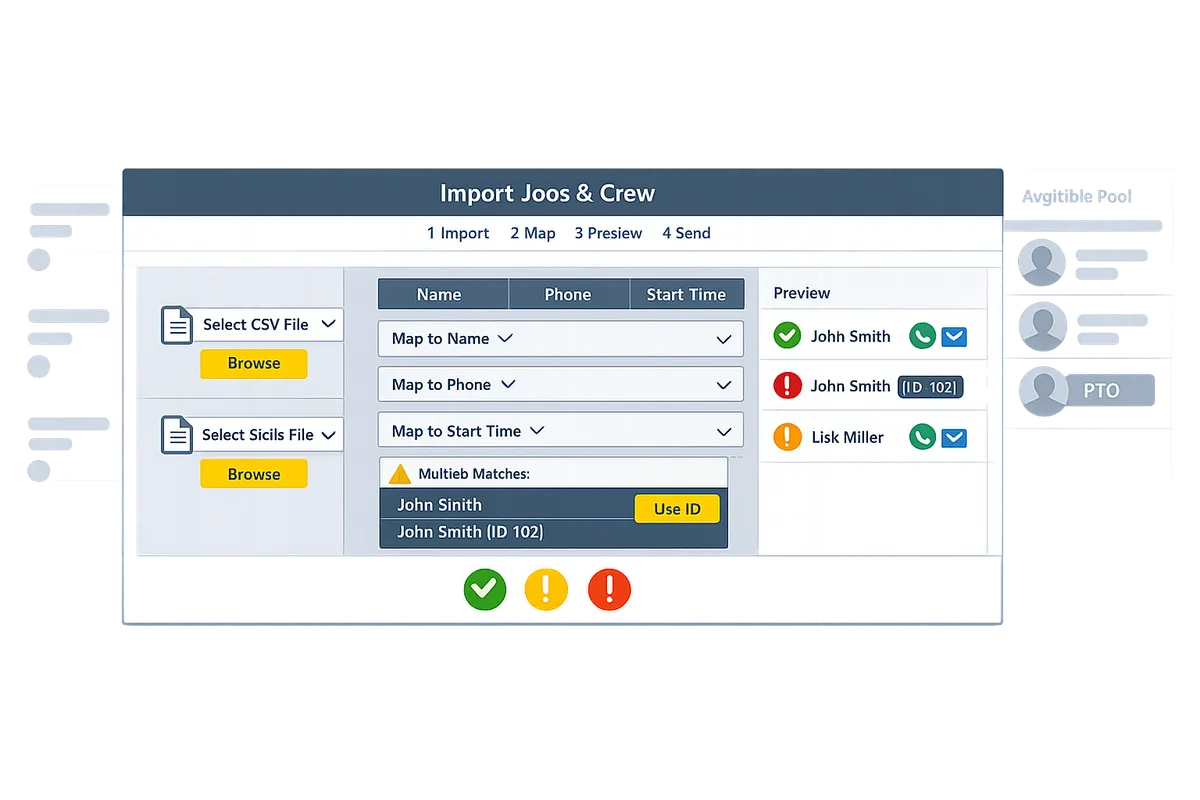
How do you verify and validate imported jobs and crews on the day board?
Run a short validation routine: count checks, spot checks, a small SMS pilot, and an audit-log review. These steps catch wrong job numbers, PTO mistakes, start-time errors, and messaging problems before you schedule or notify the full crew.
Quick checklist after import ✅
Run these checks within a minute or two of the import to catch the most common data mistakes.
- Confirm job count. Open the Day Board and compare the visible job cards to the row count in your jobs CSV. If counts differ, export the import preview and compare line-by-line.
- Verify crew pool size. Match the pool headcount to your crew CSV and to the roster in our Importing crew from a spreadsheet guide.
- Ensure job numbers are unique. Duplicate job numbers prevent accurate placement and make audit entries ambiguous. Fix duplicates in the CSV and re-import.
- Check PTO visibility. Crew on PTO must appear grayed-out in the pool for the selected date. If PTO flags are missing, update the PTO column in your crew file and re-run the import.
- Spot-check five random rows. For each, confirm address formatting, the start time shown on the job card, and the ideal crew size. These are the fields that most often break during copy/paste.
- Verify single-use enforcement. Try assigning a crew member to two jobs for the same date to confirm the board blocks double-booking.
If you find systemic issues, follow Importing jobs from a spreadsheet to re-map columns and correct errors before committing the dataset.
How to test SMS notifications safely ✉️
Send a small pilot SMS to supervisors or internal test numbers to confirm templates, character counts, and delivery behavior before messaging the full crew.
- Use the shortest message that still proves the workflow. Include Job Name and Start Time only. That isolates template and variable-substitution problems.
- Check the SMS character and segment counter in the template editor. Long messages split into multiple carrier segments and may change delivery timing or cost.
- Send to an internal supervisor group or two verified test numbers first. Supervisors act as canaries for address formatting, missing variables, and timing.
- If a pilot fails, fix phone formatting (e.g., +12223334444), correct the template variable, then re-send only to the test group. Avoid sending the full roster until the pilot shows clean delivery.
💡 Tip: Send the pilot to a supervisor group first; they confirm formatting and address accuracy without disrupting field crew.
Reference our Day Board sending workflow in The schedule board for where to pick templates and preview messages before sending.
How to use CrewSheet's audit log and communication history 🔍
Audit log is an operational record that shows every outbound notification with recipient, timestamp, job, channel, and delivery status. According to CrewSheet's docs, the audit log is the single source of truth for outbound notifications.
- Open Communication History from the job card or global Communications view to see every send event associated with that date and job.
- Use filters by date, job number, or template to narrow results. Audit entries include job, date, recipient list, channel, and timestamp, which makes reconciliation fast.
- Reconcile missed deliveries. If numbers show as failed or not delivered, the audit entry points to the failing recipient. Update that phone in the crew record or CSV and re-send only to those recipients.
- Capture evidence for payroll or compliance. Export or screenshot audit rows when you need a timestamped record of who received what and when.
If you need step-by-step import correction before re-sending messages, consult Importing jobs from a spreadsheet and then re-run your SMS pilot to confirm the fix.
How do you map AACE 37R-06 L3 schedule levels to a daily crew schedule and troubleshoot common errors?
Map AACE 37R-06 L3 fields to Crew Sheet job records by aggregating Level‑3 activities into job-level rows the day board can use. This keeps cost and level traceability in your ERP while keeping Day Board cards concise and actionable for schedulers.
What is AACE 37R-06 L3 mapping? 📊
AACE 37R-06 L3 mapping is a scheduling standard that specifies Level 3 activity detail and resource assignments and requires aggregation for day-level crew scheduling. Use this definition to decide which L3 fields become Crew Sheet job fields and which remain in your ERP for reporting. For example, detailed P6 activity lines that describe hourly tasks should generally be collapsed into one job row per site and date, while cost-code and earned-value fields remain in the ERP for later analysis. Crew Sheet expects job-level rows with a unique Job Number, a start date, an address, and an ideal crew size for the Day Board to place cards without manual re-entry.
Table: map common AACE L3 fields to Crew Sheet job fields 🔎
The table below shows common L3 fields, the Crew Sheet job target, and the aggregation rule to apply when preparing your CSV import.
| AACE L3 field | Crew Sheet job field | Aggregation rule | Notes / Why this matters |
|---|---|---|---|
| Activity ID | Job Number | Concatenate SiteID + Day or pick Site-level Activity ID | Job Number deduplicates during import; make it stable across exports |
| Activity Name | Job Name | Pick the most descriptive activity name or concatenate short names | Keeps Day Board cards readable for operators |
| Planned Start | Start Date (Day) | Pick earliest start on that site/date | Day Board is day-based; earliest start determines dispatch time |
| Planned Finish | End Date (optional) | Keep in ERP for reporting; optional field in Crew Sheet notes | Day Board does not use finish times for day scheduling |
| Assigned Resource | Crew Member (imported to pool) | Expand resource pools into individual rows | Crew Sheet assigns individuals from the pool for one-job-per-day enforcement |
| Crew Size / Role | Ideal_Crew_Size and Role | Sum resource units for crew size, pick majority for role | Shows guideline crew count on card, role drives which pool members to assign |
| Duration (hrs) | Notes or Duration field | Sum durations, show as estimated crew-hours in notes | Useful for foremen to assess workload, keep detailed hours in ERP |
| Cost Code / WBS | Job Cost Code (ERP) | Keep full code in ERP; include as import field for traceability | Preserve cost mapping for back-end reporting without crowding the Day Board |
Refer to the import specifics in our documentation on importing jobs from a spreadsheet when you prepare headers and sample rows.
Common mapping issues and how to fix them 🛠️
The most common mapping errors are misaligned granularity, missing Job IDs, and inconsistent role names. These create too many tiny cards, duplicate jobs, or crew-role confusion on the Day Board, increasing manual corrections for schedulers.
- Aggregate activities into one job row per site/date.
- How: Use a spreadsheet pivot or GROUP BY to roll P6 activity lines into a single row. Sum durations, pick the earliest Planned Start, and list combined activity names in Job Name or Notes.
- Why: Crew Sheet schedules by job rows, not by every L3 activity, so aggregation prevents the Day Board from generating many small cards.
- Add or normalize Job Numbers so Crew Sheet can deduplicate.
- How: Create a stable Job Number column (for example SiteID_YYYYMMDD or external JobID). Ensure exported files reuse that same identifier.
- Why: Imports match on Job Number to update existing cards instead of creating duplicates. See our guide to importing jobs from a spreadsheet for required header names and sample formats.
- Convert resource pools into individual crew rows for day-level assignment.
- How: Expand any "resource pool" entries so each crew member has a row with name, phone, and role. Normalize role names to a short controlled list (for example, "Foreman", "2nd", "Tech").
- Why: Crew Sheet enforces single-use assignments per person per day and displays PTO correctly when crew are individual records. See our importing crew from a spreadsheet article for mapping tips.
- Standardize role and unit naming across exports.
- How: Run a find-and-replace for role synonyms before import, or add a RoleLookup column that maps legacy names to your standard set.
- Why: Role mismatches stop schedulers from quickly picking the right pool member and create extra manual swaps on the Day Board.
⚠️ Warning: If you skip aggregation, the Day Board will create many small cards that break the operator's quick scheduling workflow and increase manual correction work.
If import errors persist, use a small pilot import for one date and then open the Day Board to validate counts, start times, and roster matches. For guidance on using the Day Board to review imported jobs and crew, see the schedule board and assigning crew documentation.
Frequently Asked Questions
This FAQ answers operational and technical questions about how to import jobs and crews from spreadsheets to a day board using Crew Sheet. It covers CSV formatting, P6 exports, AACE 37R-06 L3 mapping, PTO safeguards, login requirements, and phone‑format validation. Use the links to the job and crew import guides for step-by-step screens and previews.
How do I format CSV columns for Crew Sheet? 📄
Format job CSVs with Job Number, Job Name, Address, Start Date, Default_Start_Time, and Ideal_Crew_Size; format crew CSVs with Full Name, Phone, Email, and Role. These exact headers let Crew Sheet auto-detect fields during the import preview and reduce manual mapping time. Include unique Job Number values to let the importer place records on the Day Board without creating duplicates. For phones use E.164 format (example: +12223334444) and use a consistent date format (YYYY-MM-DD) so the preview validation passes.
Map optional job fields like Notes or Division only if you need them on the day card; otherwise leave them out to keep imports simple. See the detailed walkthrough in Importing jobs from a spreadsheet and Importing crew from a spreadsheet for the upload and preview steps.
💡 Tip: Standardize phone columns to E.164 (+12223334444) before upload to avoid validation failures and missed SMS sends.
Can I import directly from Primavera P6? 🔁
Yes. Export P6 activity and resource reports to CSV, then map Activity ID to Job Number and resource names to crew fields in Crew Sheet. P6 CSVs work best when you add or calculate a Job Number column in P6 before export or aggregate activities by site so each row becomes one actionable job for the day board.
If your P6 export lists many short activities per site, run a pre-import aggregation step that sums durations and picks the earliest start for the day to avoid dozens of small job cards. After that, import the resulting CSV using the same job and crew import flow described in Importing jobs from a spreadsheet.
How does AACE 37R-06 L3 to daily schedule mapping work? 📘
AACE 37R-06 L3 is a schedule level that breaks projects into activity-level work packages and must be aggregated into one day-board job record per site/day for practical crew scheduling. Define aggregation rules up front: sum planned hours, take the earliest start time, and map Activity ID to Job Number so reporting links back to the ERP.
Practically, create a staging sheet that groups L3 activities by site and date, applies the aggregation rules, and outputs one row per site/day. Import that file as your jobs CSV so Crew Sheet shows one actionable job card per site with the correct start time and a preserved Activity ID for downstream cost traceability.
Will Crew Sheet prevent scheduling someone on PTO? 🛡️
Yes. Crew Sheet shows crew with PTO as grayed-out in the available pool and blocks assignment to jobs on those dates. That visual and programmatic enforcement prevents accidental double-booking and reduces the need for manual cross-checks.
Make sure PTO appears in your crew data before sending the schedule either by including PTO rows in the crew import or by maintaining PTO directly in Crew Sheet. If PTO is missing from imports, you risk last-minute corrections and field confusion.
⚠️ Warning: Failing to import or update PTO before a mass send is the most common cause of rework and emergency calls on send day.
See Assigning crew and The schedule board for how PTO appears on the Day Board and how Crew Sheet enforces single-use rules.
Do field workers need logins to receive their schedule? 📱
No. Field workers do not need logins; Crew Sheet sends schedule details by SMS and email to the contact information you import. This keeps the workflow simple for foremen and avoids forcing every crew member to create an account or install an app.
Messages are outbound only, so crew receive instructions without needing to reply or confirm. See Welcome to Crew Sheet for the day-board workflow and the communication model.
What if phone numbers are in inconsistent formats? 🔍
Phone numbers that are not in E.164 will fail validation in the import preview and can prevent SMS delivery. Standardize numbers to E.164 before importing or mark records as email-only to avoid blocking the batch send.
Use spreadsheet functions or a quick search-and-replace to add country codes (for example convert 2223334444 to +12223334444). Run the Crew Sheet import preview to catch remaining invalid rows and correct them before committing the import. Refer to Importing crew from a spreadsheet for the preview and error-resolution steps.
Finish the import and send the day's roster in minutes.
If you followed the steps above, you can import jobs and crews from spreadsheets to a day board and then assign crews quickly in Crew Sheet. Use the job import guide to map job numbers, names, addresses, start times, and ideal crew size, and use the crew import guide to bring names and contact info into your pool. These two imports get you from raw CSV to a usable day view.
Download the Crew Sheet CSV template and run a trial import, then open the schedule board to drag crew onto jobs and resolve any PTO or single-use conflicts before sending. After the board looks right, follow the assigning crew instructions to finalize rosters and dispatch texts or emails.
If your shop uses formal schedule levels, consult AACE 37R-06 L3 to daily schedule mapping for a clean handoff from level 3 plans to day-of assignments. That mapping reduces rework when you convert exported schedules into job cards.
💡 Tip: Preview column mappings and verify the PTO column before completing the import to avoid accidental double-booking."